
 Ryan Zhang's Blog


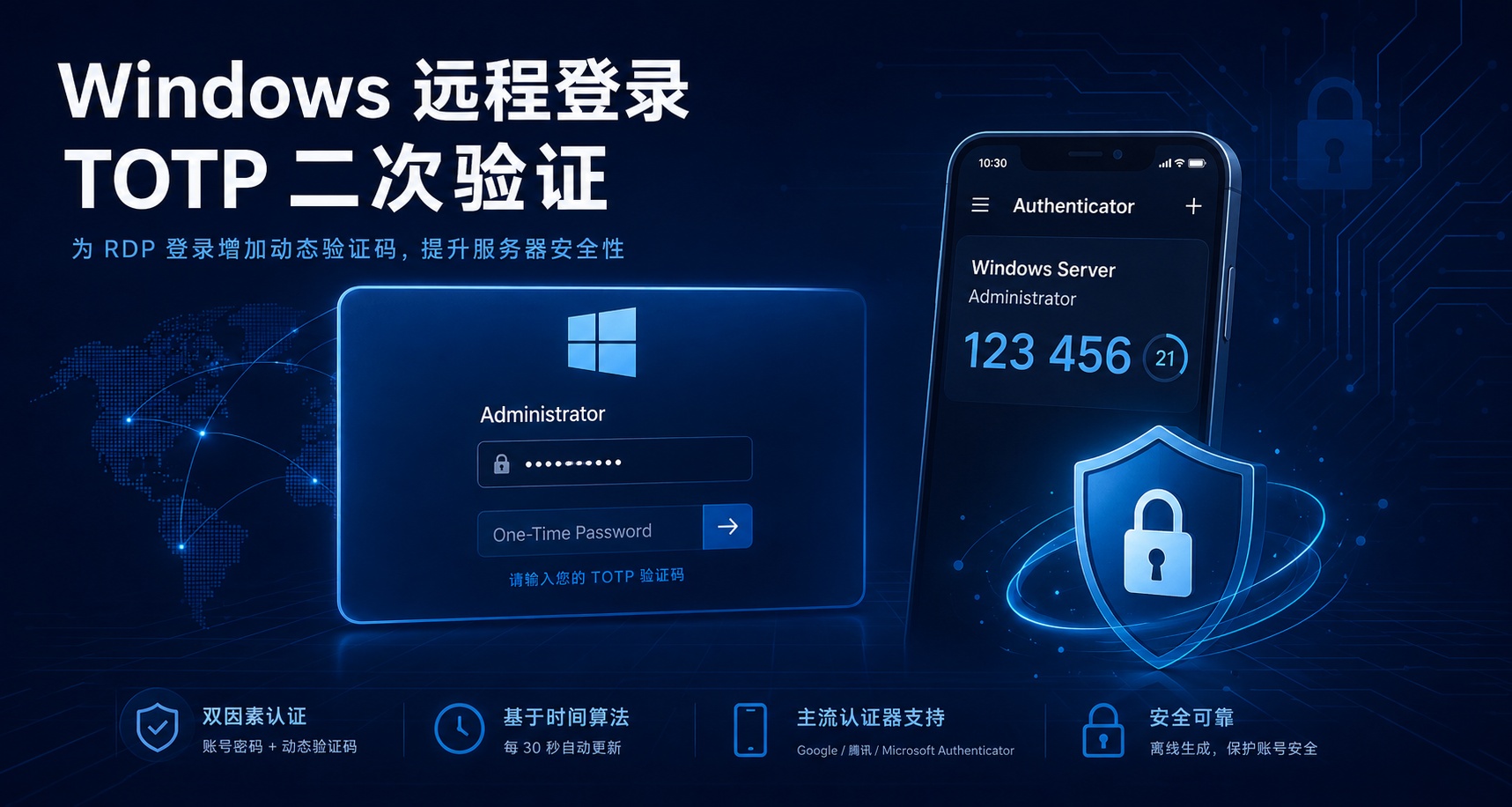
TOTP Two-Factor Authentication for Windows Remote Logins
Translation Notice
This article was originally written in Chinese and translated into English with the assistance of AI. The translation has been reviewed and edited for clarity, accuracy, and readability. Please refer to the original source where necessary, especially for technical terms, commands, configuration details, and proper nouns.
By default, Windows Remote Desktop (RDP) relies only on a username and password. If the password is exposed, the server may face brute-force and credential-stuffing attacks.
This article explains how to use multiOTP Credential Provider to add TOTP two-factor authentication to Windows login. In addition to credentials, remote desktop users must enter a one-time code, significantly improving server remote-login security.
Features:
- ✅ Windows Server / Windows 10 / Windows 11
- ✅ Two-factor verification for RDP
- ✅ Mainstream authenticators such as Google Authenticator and Tencent Authenticator
- ✅ Fully offline operation; no Internet connection required
- ✅ Free and open source
Download
Official project:
https://github.com/multiOTP/multiOTPCredentialProvider/releases/tag/5.10.2.2
China mirror:
http://oss-huating-1.bytesycn.cn/files/zip/multiOTPCredentialProvider-5.10.2.2.zip
What Is TOTP?
TOTP (Time-based One-Time Password) is a time-based one-time password algorithm.
It combines a shared secret with the current time, typically changing every 30 seconds, to generate a six-digit one-time code.
Even if an attacker obtains the Windows password, they cannot complete the remote login without the code on the user’s phone.
Compared with password-only login, this helps defend against:
- Password exposure
- Brute-force attacks
- Credential stuffing
- Weak-password risks
Recommended TOTP Apps
The following authenticators are recommended:
- Tencent Authenticator (recommended)
- Google Authenticator
- Microsoft Authenticator
- 2FAS Authenticator
The first two options are recommended.
Note
Google Authenticator may be unavailable for download in some regions.
Microsoft Authenticator does not make key export and migration especially convenient; changing phones may require reconfiguration.
⚠️ Read Before Installing
After installation and a system restart, two-factor verification will be enabled for RDP immediately.
Therefore, make sure the server has at least one local access method:
- VMware Console
- Hyper-V Console
- VNC
- iDRAC / iLO / IPMI
- A physical monitor
Do not install this directly on a server whose only access method is RDP.
If token configuration is incomplete, you will be unable to log in through RDP.
Installation Steps
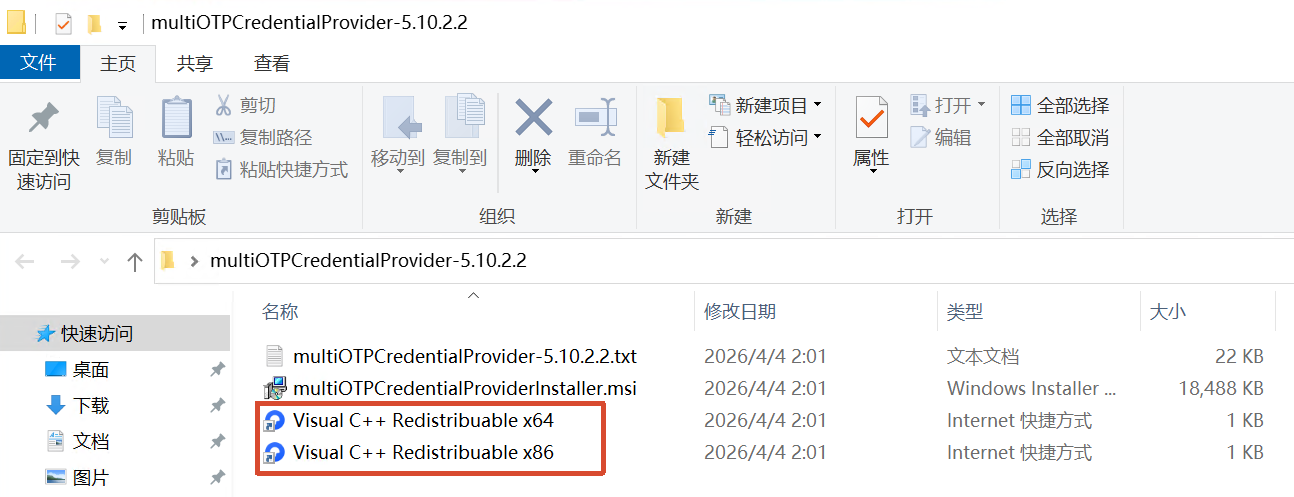
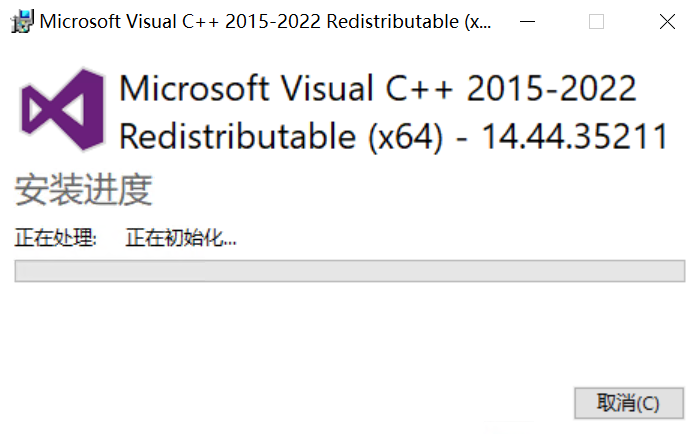
1. Install Visual C++ Runtime
Install the VC++ runtime first.
Choose the version that matches your system.
2. Install multiOTP Credential Provider
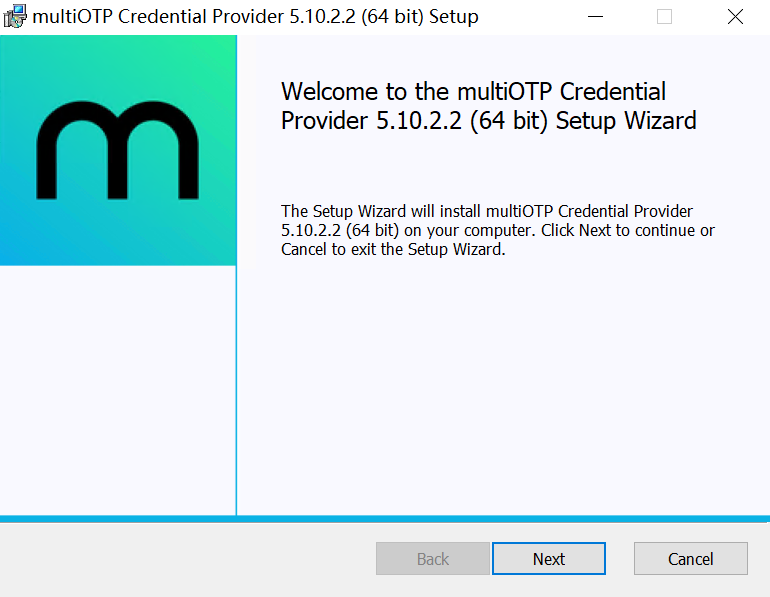
Run the installer.
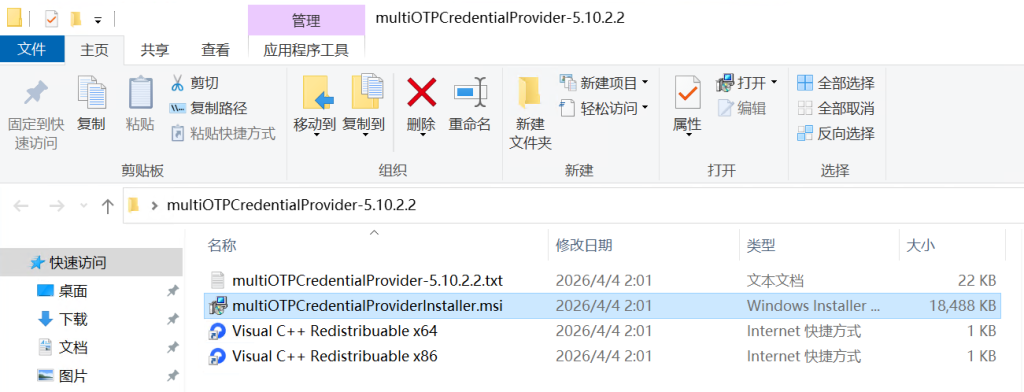
Click Next.
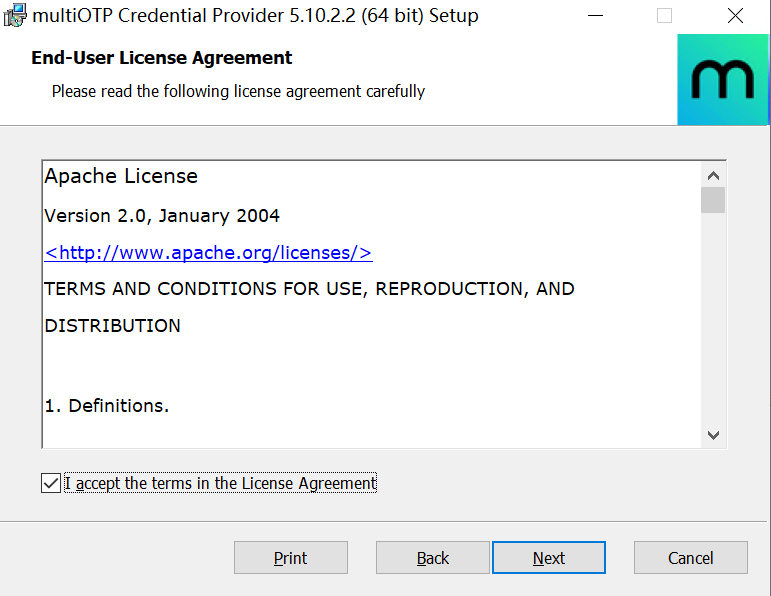
Accept the license agreement.
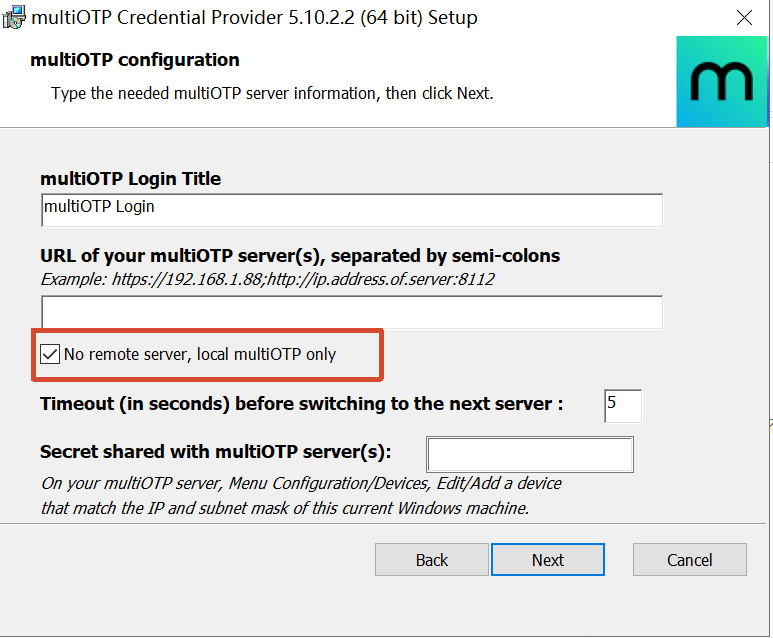
2.1. Login Title
Here you can change the name displayed on the Windows login screen.
Also make sure to select:
No remote server, local multiOTP only
This selects local mode, which does not depend on remote RADIUS/LDAP or other authentication servers.
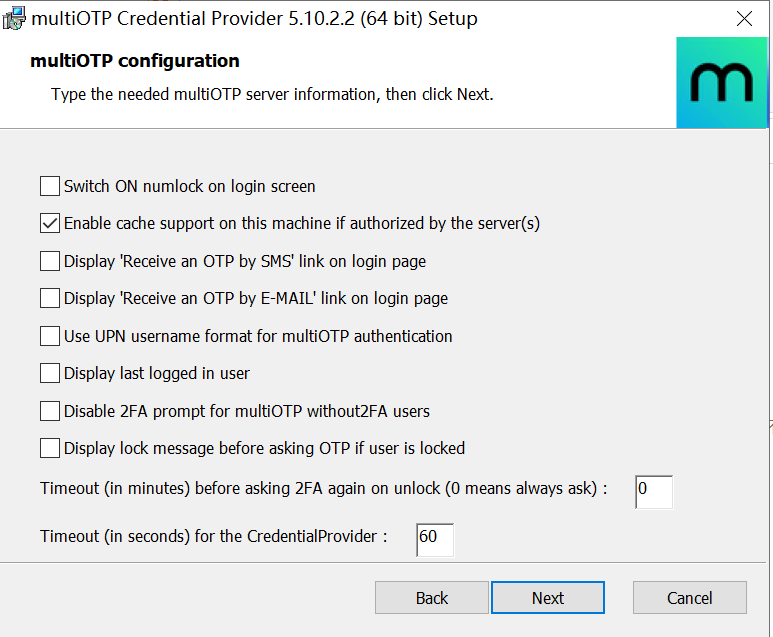
Continue the installation.
2.2. Choose the Verification Scope
Recommended option:
Only Remote
This means:
- Local login does not require a code
- RDP login requires a code
Servers and jump hosts are generally administered through RDP, so enabling two-factor authentication only for remote logins is recommended.
This preserves a recovery path through VNC, IPMI, or physical login if the phone is lost or token configuration fails.
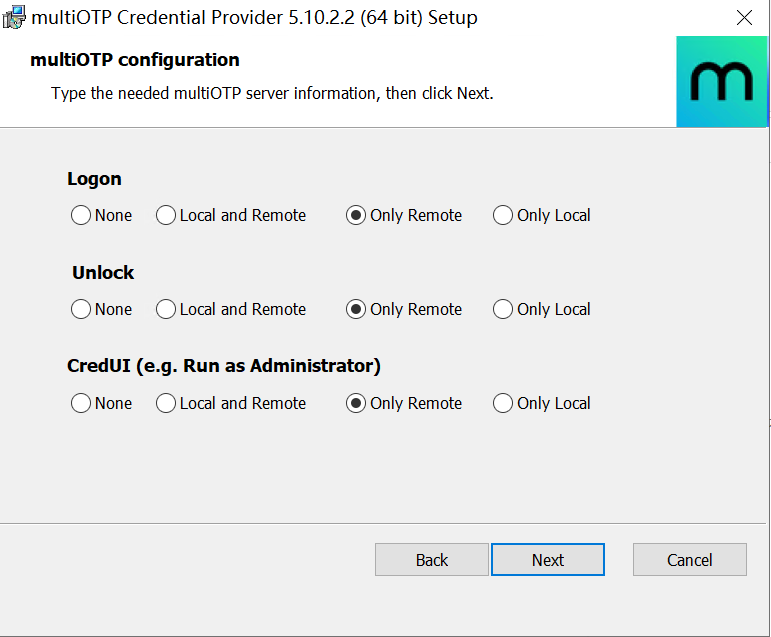
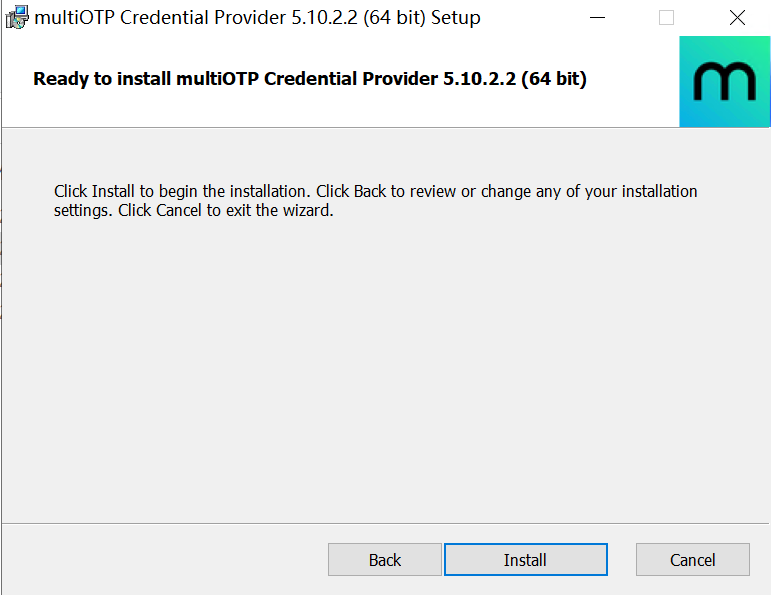
Click Install.
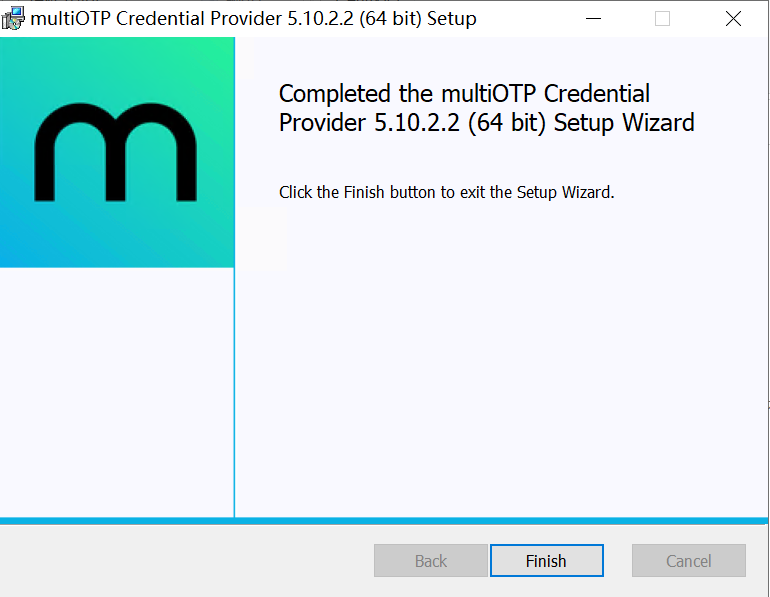
Installation is complete.
3. Restart the Server
Restart the system after installation.
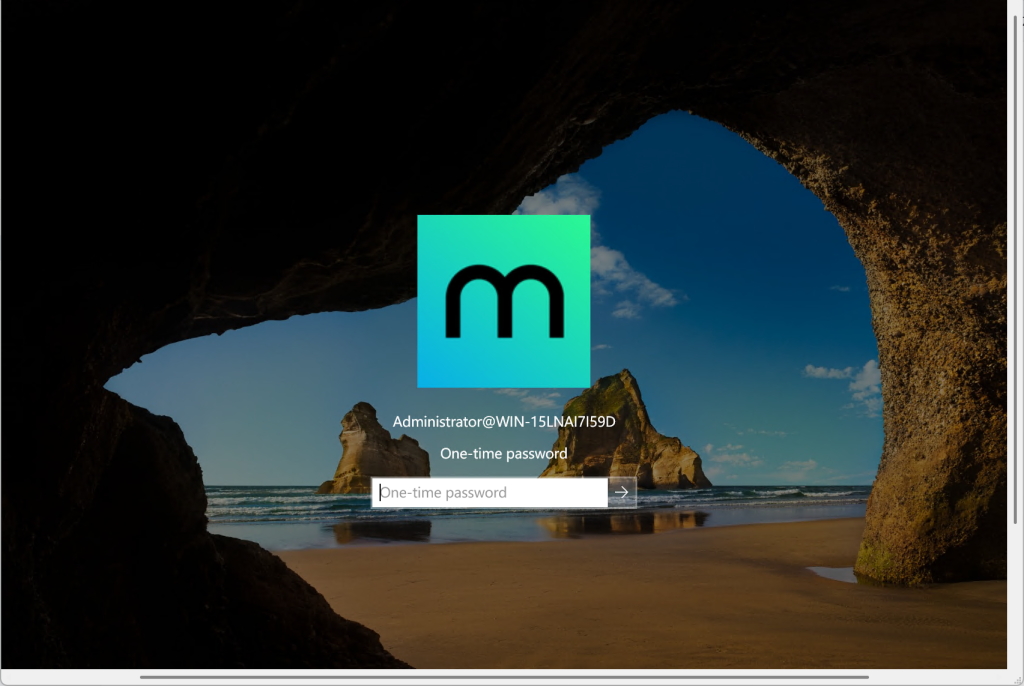
After the restart, RDP login will go directly to code verification.
Use one of the following for subsequent configuration:
- VMware Console
- VNC
- Hyper-V Console
- IPMI
- Local login
to continue.
Even with the correct password, a TOTP code will be required.
Configure TOTP
Log in to the server through VNC or a physical console.
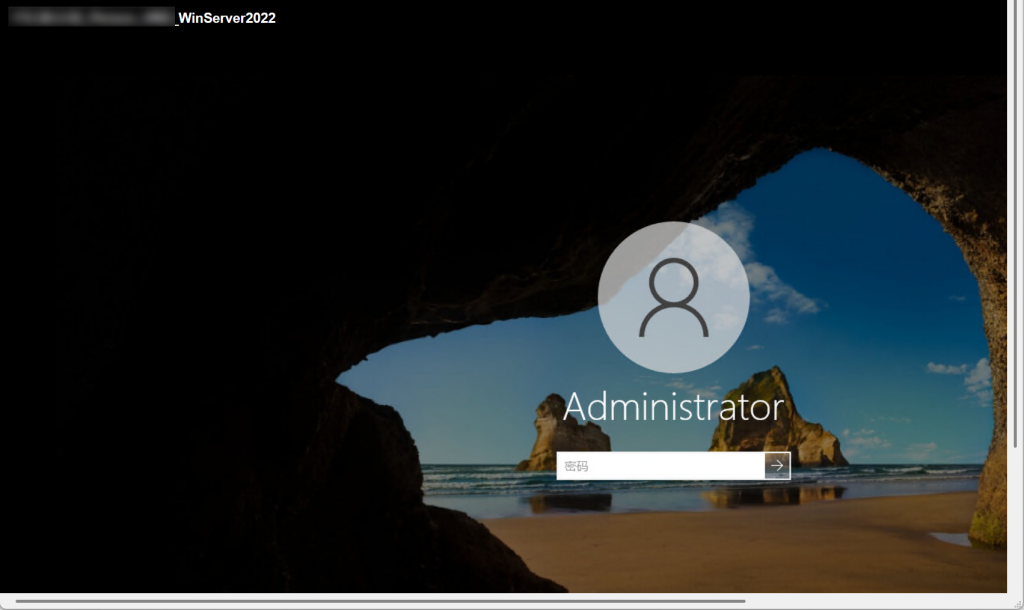
Open CMD as an administrator.
Change to the installation directory:
cd "C:\Program Files\multiOTP"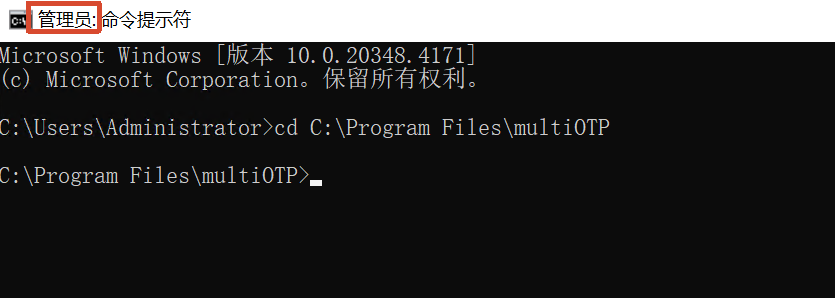
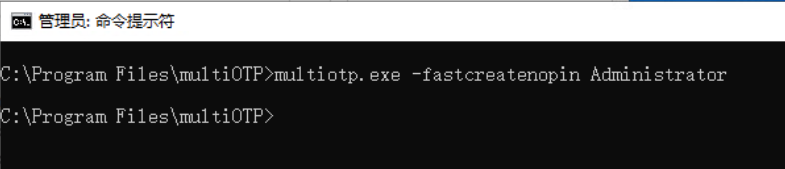
1. Create a Token
Run:
multiotp.exe -fastcreatenopin AdministratorThis command generates a new TOTP secret for the Administrator user.
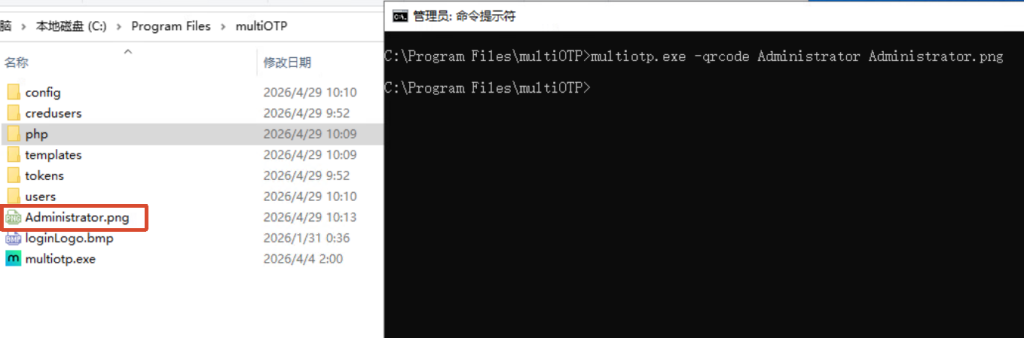
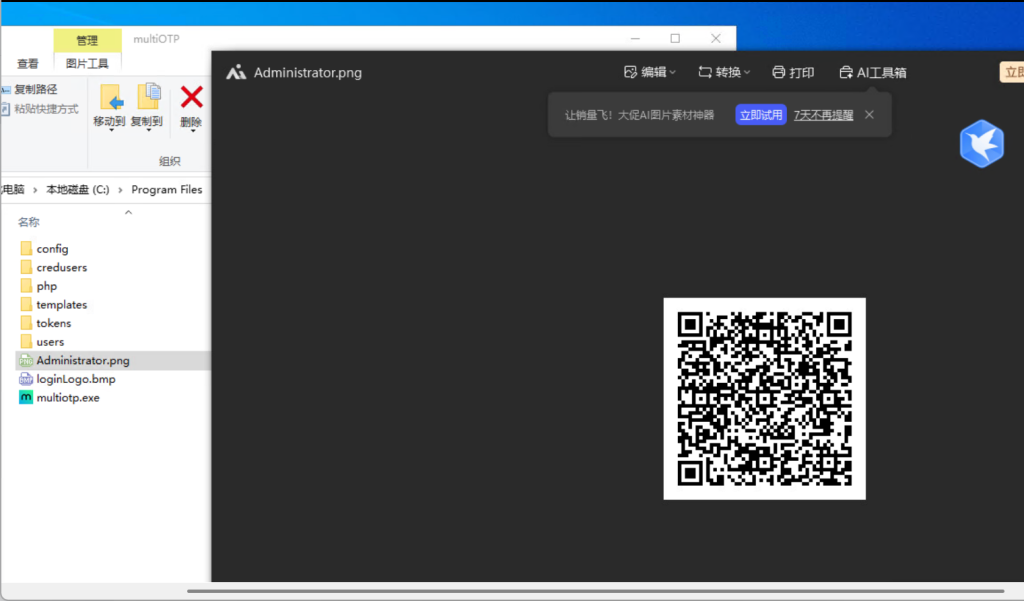
2. Generate a QR Code
Run:
multiotp.exe -qrcode Administrator Administrator.pngThis generates a QR-code image in the current directory.
3. Scan the QR Code with Your Phone
Open any TOTP app.
Scan the QR code to complete the binding.
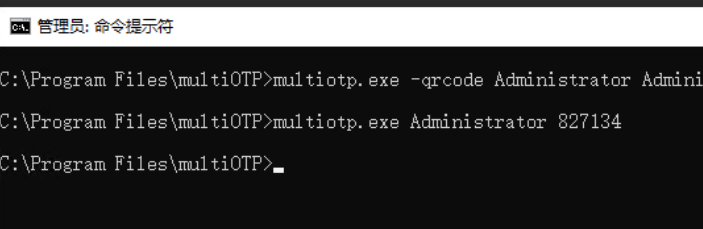
4. Verify the Code
Enter:
multiotp.exe Administrator 123456Where:
123456
replace it with the code shown on your phone.
If the command produces no output, verification succeeded.
Test RDP Login
You can now log in to the server through RDP normally.
First enter:
- Username
- Password
After authentication succeeds, the following prompt appears:
One-Time Password
Enter the one-time code shown on your phone.
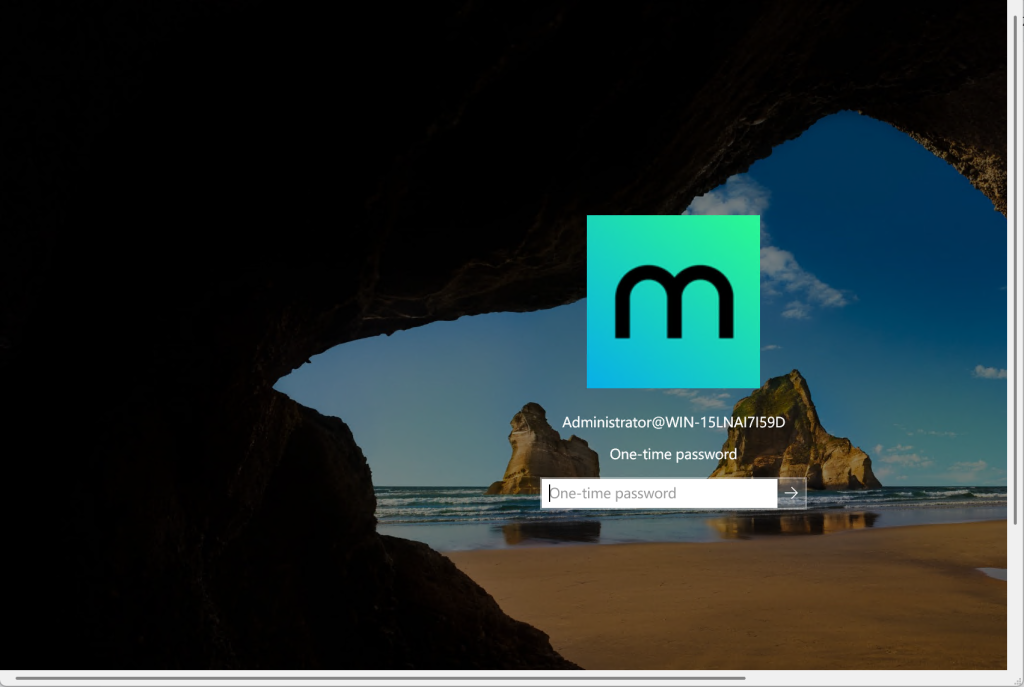
After verification, Windows opens.

Frequently Asked Questions
Does RDP Keep Reporting an Invalid Code?
Check the following:
- Whether the Windows time is correct
- Whether automatic time synchronization is enabled on the phone
- Whether the newest QR code was scanned
- Whether the token was regenerated
Because TOTP is time-based, a clock difference of more than a few dozen seconds can cause verification to fail.
Does Local Login Require a Code?
If Only Remote was selected during installation:
- Local login: no code required
- RDP login: code required
This mode is recommended for servers.
Are Multiple Users Supported?
Yes.
Each Windows user can have an independent TOTP secret.
For example:
multiotp.exe -fastcreatenopin user1multiotp.exe -fastcreatenopin user2multiotp.exe -fastcreatenopin user3Each user can bind their phone using their own QR code.
How Do I Restore Access?
If the phone is lost or the code cannot be used, access the system through:
- VMware Console
- VNC
- IPMI
- iDRAC
- iLO
- Local login
Then regenerate the token or uninstall multiOTP.
Always keep at least one local access method available.
Summary
At this point, we have successfully added TOTP two-factor authentication to Windows Remote Desktop (RDP).
Compared with password-only login, an attacker who obtains the Windows password still cannot authenticate without the code on the phone, significantly improving remote-login security.
For servers with public RDP exposure, operations jump hosts, or important production systems, also use:
- A strong password policy
- Restricted RDP source IPs
- Changing the default 3389 port when appropriate
- Windows Firewall
- TOTP two-factor authentication
- Regular login-log reviews
Layered protections are more effective at reducing the risk of brute-force attacks, password exposure, and unauthorized access.
Support & Share
If this article helped you, please share or support!