
 Ryan Zhang's Blog


nwipe Tutorial: Secure Data Destruction with an Open-Source Tool
Translation Notice
This article was originally written in Chinese and translated into English with the assistance of AI. The translation has been reviewed and edited for clarity, accuracy, and readability. Please refer to the original source where necessary, especially for technical terms, commands, configuration details, and proper nouns.
1. What Is nwipe?
nwipe[1] is an open-source command-line tool designed to securely and thoroughly erase data from hard drives, including HDDs and SSDs. It is a fork and modern successor to the earlier well-known tool DBAN (Darik’s Boot and Nuke).
Its core purpose is to overwrite data multiple times with random or specified patterns before storage media is retired, resold, or recycled, ensuring that the original data cannot be recovered by software or hardware and protecting privacy and security.

2. Key Features of nwipe
-
Free and open source: The code is public and transparent. Anyone can audit, modify, and redistribute it, making the tool trustworthy.
-
Multiple erasure standards: It includes internationally recognized algorithms for different security requirements, including:
- DoD 5220.22-M: U.S. Department of Defense standard (3 or 7 passes)
- Gutmann: The classic method proposed by Peter Gutmann (35 passes; very thorough for older technology, but potentially excessive for modern drives such as SSDs)
- PRNG Stream: Multiple overwrites using a pseudorandom-number generator (the number of passes is configurable)
- Verify Only: A fast mode that checks whether every disk sector is readable without erasing data, useful for detecting bad sectors
-
Independent of the installed OS: nwipe is commonly included in Live Linux distributions such as Parted Magic and SystemRescue, or can be placed on a bootable USB drive. It runs independently of the operating system on the disk, allowing the system disk itself to be erased without file-lock or permission issues.
-
Automation and batch processing: Command-line parameters enable scripted, automated batch erasure, making it suitable for data centers and large disk inventories.
-
Detailed logs: Later versions generate logs containing the serial number, model, erasure method, start and end times, and final verification result (PASS/FAIL), which is important for auditing and compliance.
-
Broad hardware compatibility: It supports storage devices connected through SATA, SAS, PCIe/NVMe, and USB.
3. Install nwipe (Skip to Section 4 if Already Installed)
Prerequisites
- A Linux distribution (to erase an entire device, use a Live OS booted from an external medium such as a USB drive)
- A computer or server capable of recognizing your drive (SAS, SATA, SSD, NVMe, and so on)
Installation
-
Boot into an operating system. Any Linux distribution will work. To erase an entire device, I recommend systemrescue[1], a Live OS for Linux system recovery that includes many tools, including nwipe.
-
Install nwipe.
This method may not install the latest version and may not support PDF reports (PDF reports require nwipe version >= 0.35).
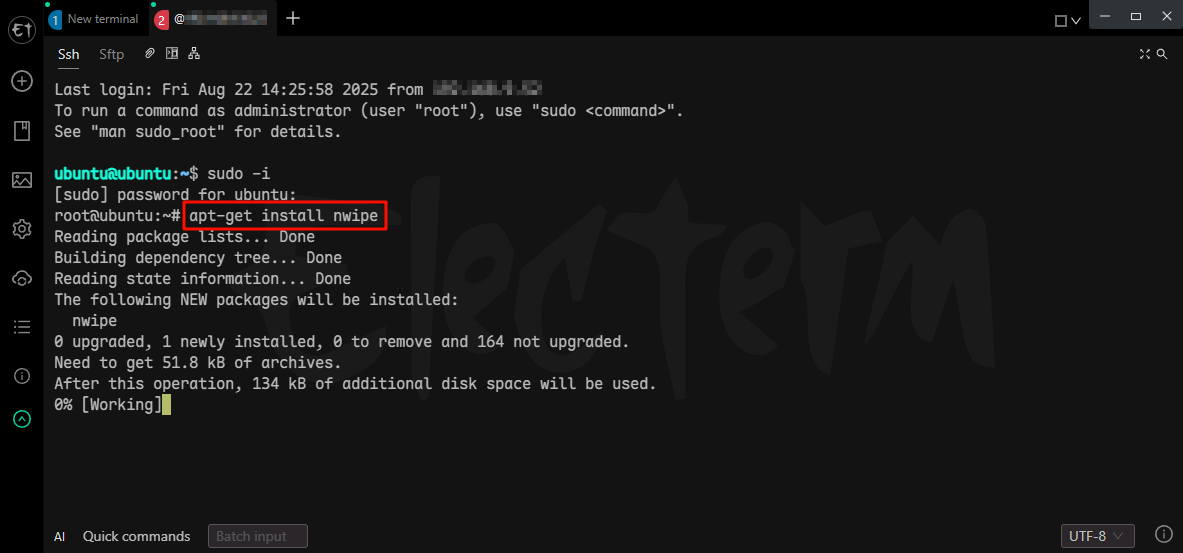
- Package-manager installation 👇
# Ubuntu, Debian, etc.apt-get update -yapt-get install nwipe -y
# CentOS, OpenEuler, Rocky Linux, etc.yum update -yyum install install nwipe -y
# Linux distributions supported by dnfdnf update -ydnf install install nwipe -y- Build from source 👇
wget https://github.com/martijnvanbrummelen/nwipe/archive/refs/tags/v0.38.tar.gztar -xzf v0.38.tar.gzcd nwipe-0.38/./autogen.sh./configuremakesudo make install- Verify the installation. If
nwipe --versionreturns a version, the installation succeeded. For example:
root@ubuntu:~# nwipe --versionnwipe version 0.38root@ubuntu:~#4. Destroy Data on a Retired Drive with nwipe
Here I use a VMware virtual machine running Ubuntu Server.
- Run
sudo nwipeto open the nwipe interface. Its GUI-like interface makes data erasure much easier. - Select the storage medium to erase. Use the arrow keys to navigate and Space to select; selected devices display “wipe”.
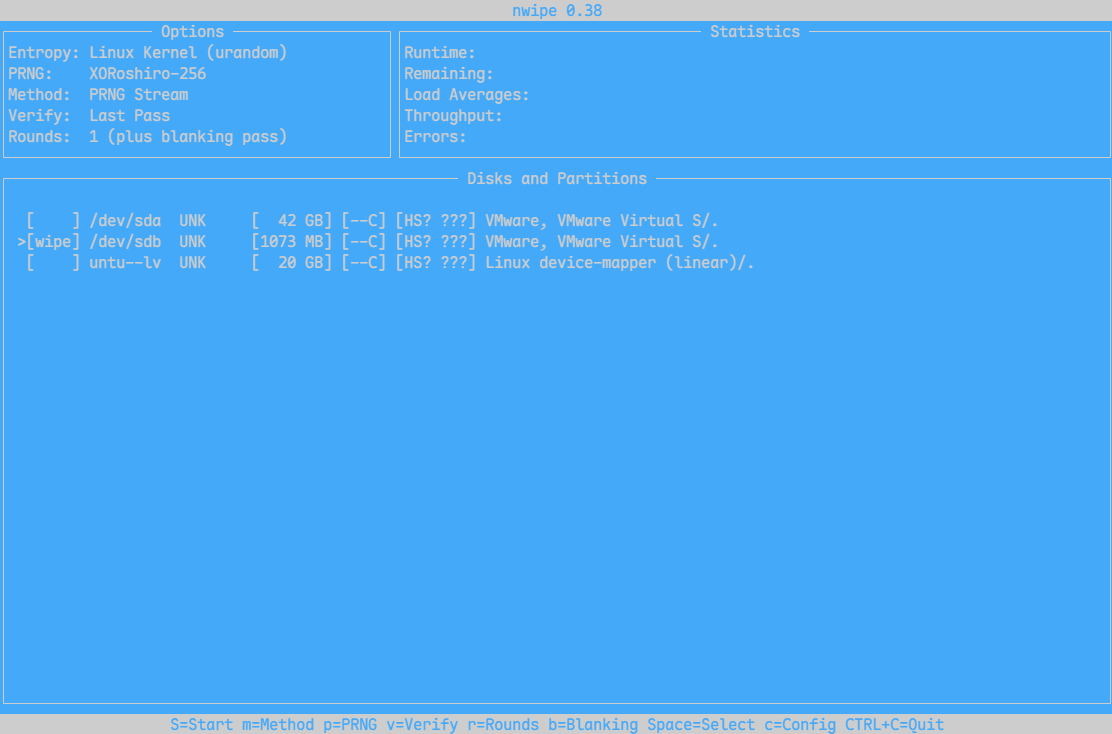
nwipe - Press
Mto select the erasure standard. Use the arrow keys to navigate and Enter to confirm. (See 2. Key Features of nwipe for standards, and “Data Destruction: An Overview of Technologies and Standards” for differences.)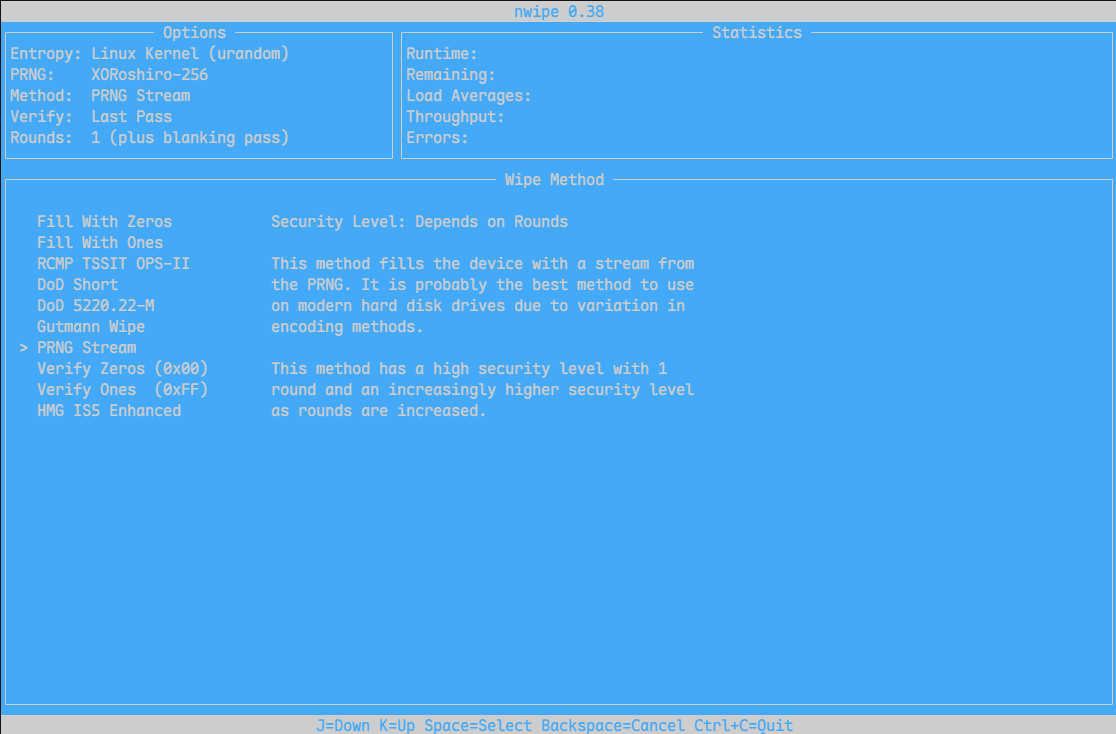
Erase Method - Press
Vto choose the verification method. The default verifies the final pass; you can disable verification to improve speed.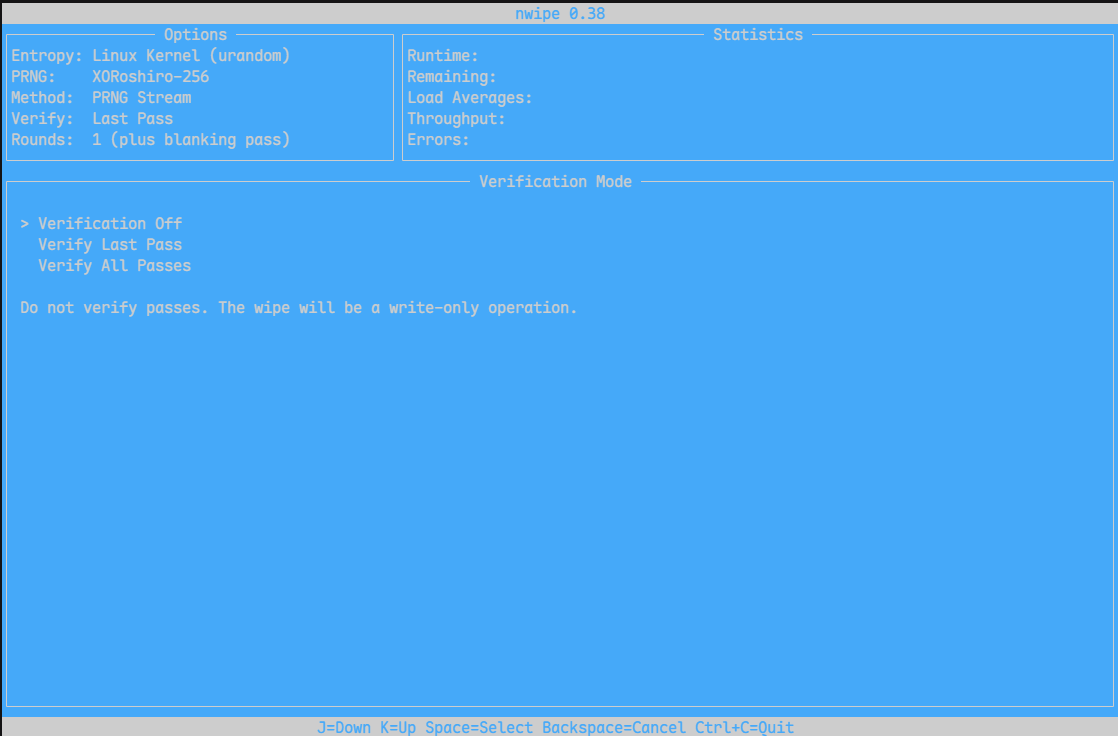
Verify - Press
sto start overwriting. Because this is risky and irreversible, a safety check requires you to pressShift+Sor uppercaseSbefore the operation begins.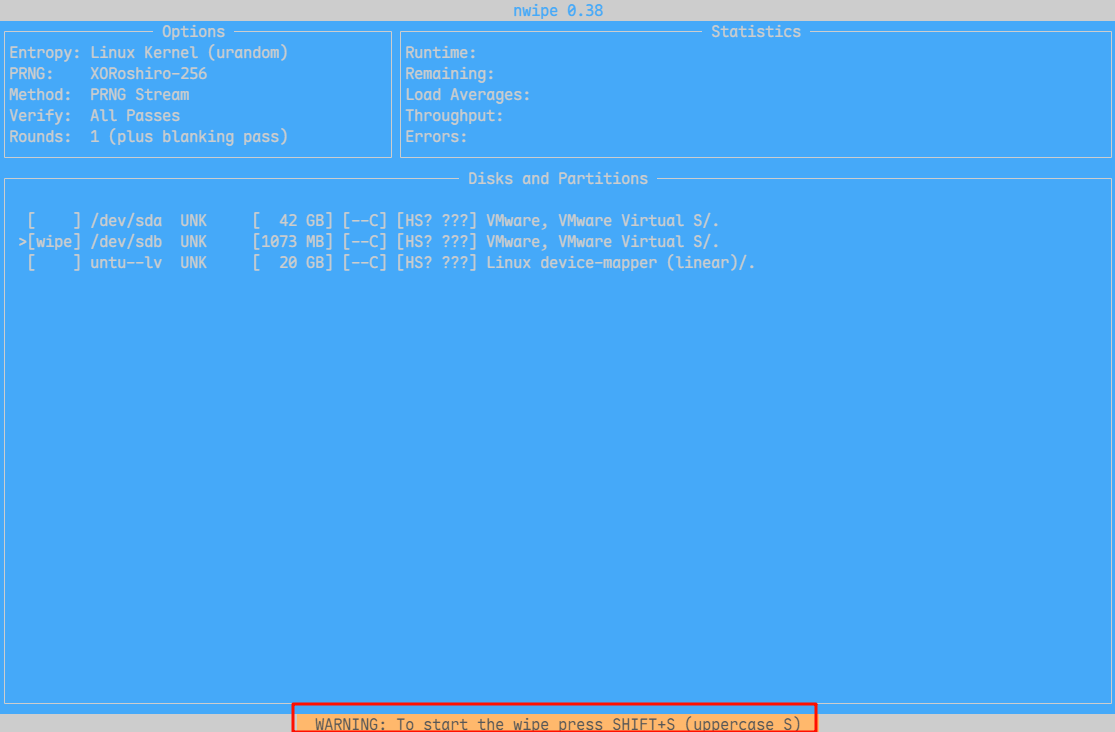
Start Erase - When erasure is complete, press
CTRL+Cto exit nwipe. The report is generated in the current directory (supported only in newer versions).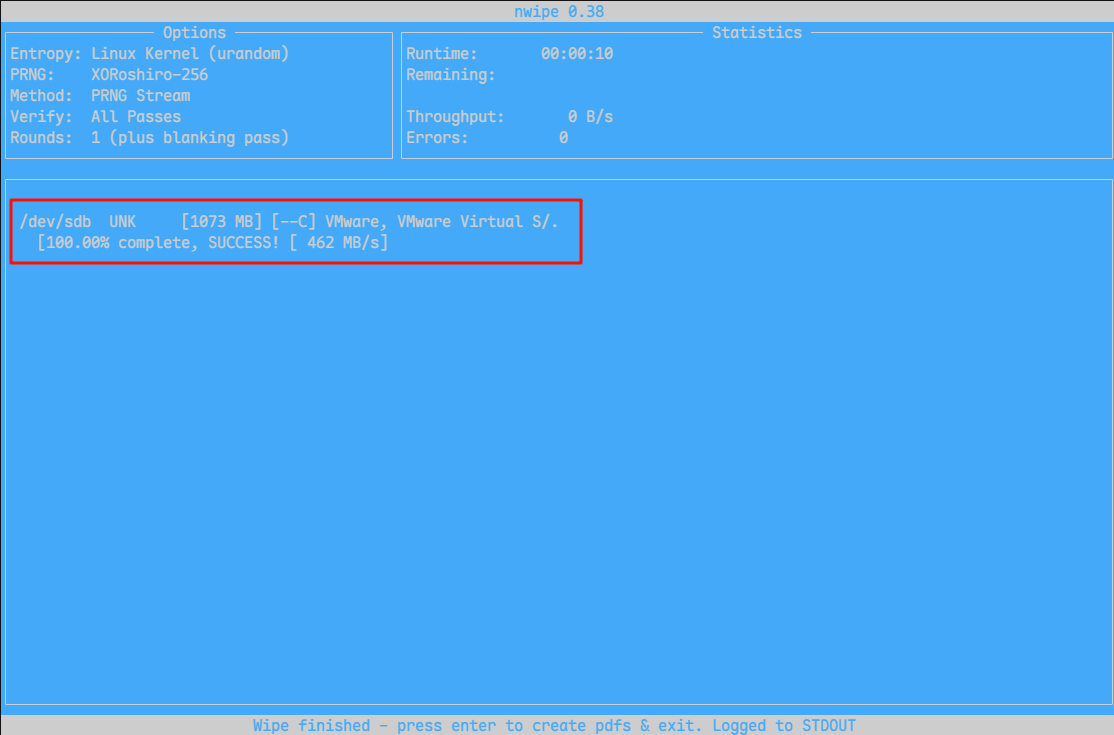
Complete 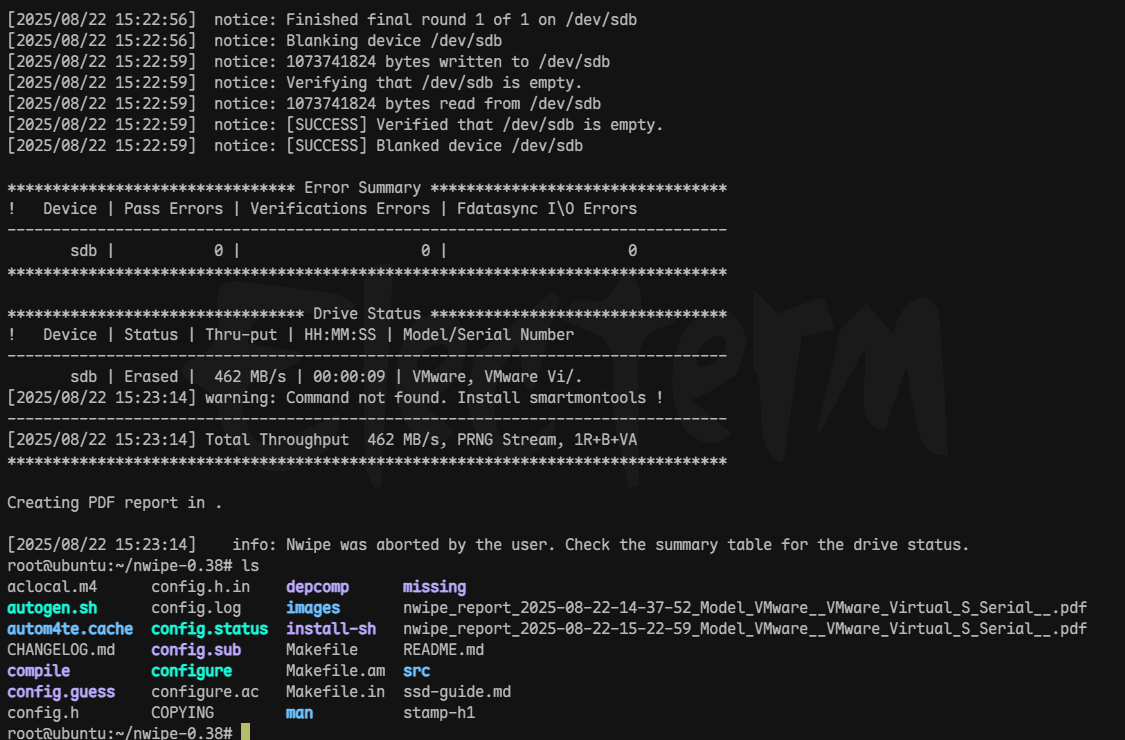
Report - Finally, copy the PDF file out manually.
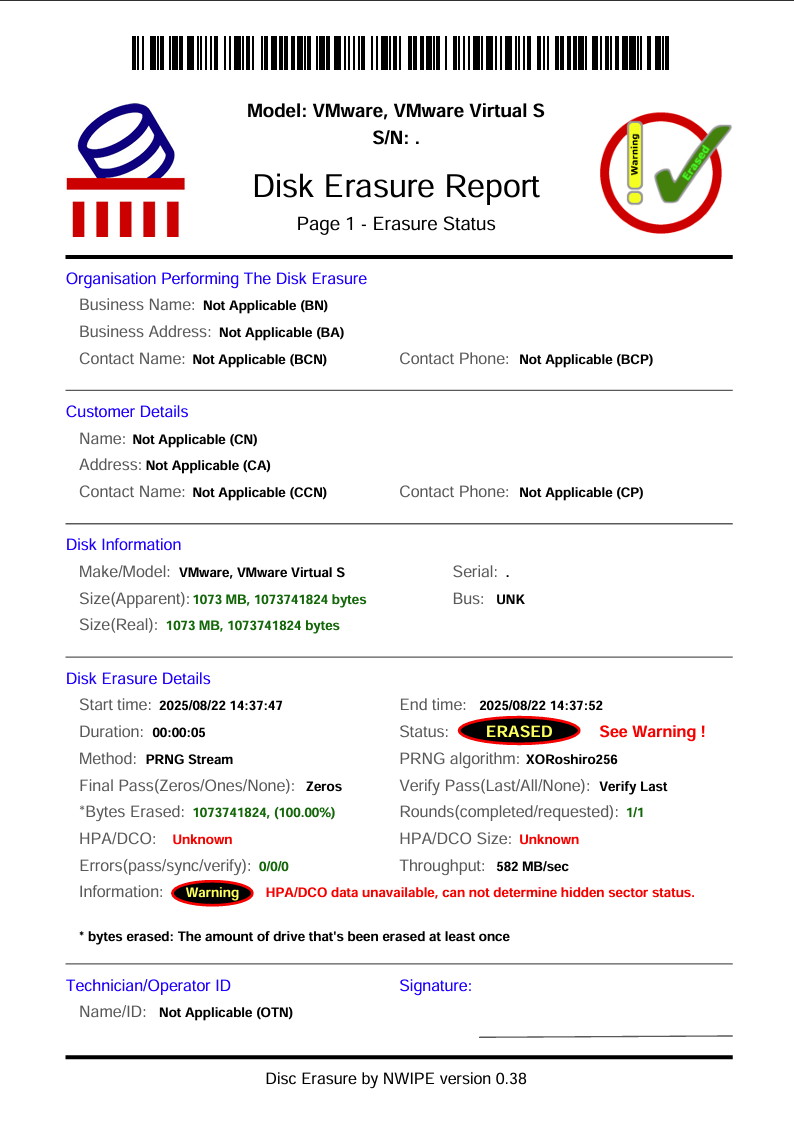
PDF Report
🔗 Related links:
[1] nwipe Project Repository: https://github.com/martijnvanbrummelen/nwipe
[2] systemrescue Official Website: https://www.system-rescue.org/
Support & Share
If this article helped you, please share or support!