
 Ryan Zhang's Blog


PicImpact Uploads Failing with Cloudflare R2? Here’s How to Troubleshoot It
Translation Notice
This article was originally written in Chinese and translated into English with the assistance of AI. The translation has been reviewed and edited for clarity, accuracy, and readability. Please refer to the original source where necessary, especially for technical terms, commands, configuration details, and proper nouns.
PicImpact is a self-hostable photography portfolio platform built with Next.js + Hono.js. It looks great and is practical—perfect for people like me who enjoy tinkering but are too lazy to build a frontend from scratch 🙋♂️
📌 Project Links
- 🌐 GitHub:
-
📖 Documentation:
🪄 Why PicImpact?
I was looking for an attractive and convenient image-hosting template for my photography site Moments. After comparing several options, I found PicImpact: a great interface, simple deployment, and Docker support—everything in one shot!
🚫 Why not deploy it locally?
Don’t ask. I simply did not want to run Node.js—it feels too heavy… 💀
🐳 One-Command Docker Deployment
Deployment is genuinely smooth. Install PostgreSQL beforehand—locally or in the cloud—and then all that remains is a docker run. 🌟 It is incredibly fast:
docker run -d --name picimpact \ -p 3000:3000 \ -e DATABASE_URL="postgresql://[username]:[password]@[host:port]/[database]" \ -e BETTER_AUTH_SECRET="npx auth secret or a random string" \ besscroft/picimpact:latest🧨 But Then Came the Problem…
I initially used Alist as the storage backend, but my home connection’s limited upload speed made access painfully slow. So I turned to Cloudflare’s free R2 object storage service.
After configuring everything, image uploads went haywire:
-
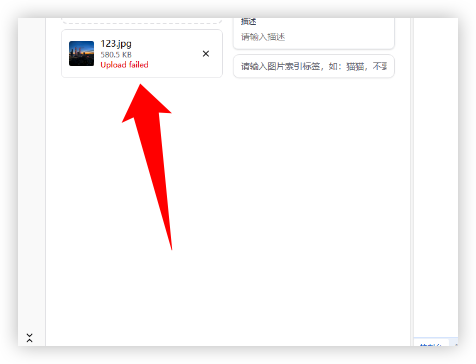
The lower-right popup reports ☑️ success, but Upload.failed appears below the image.
-
A collection of bizarre Console errors:
- ERR_NAME_NOT_RESOLVED
- ERR_SSL_VERSION_OR_CIPHER_MISMATCH
- ERR_FAILED
- has been blocked by CORS policy: … No ‘Access-Control-Allow-Origin’ header
Was the upload successful? The R2 console was empty… Was it a failure? The frontend insisted that it had succeeded. It felt as if I had encountered every PicImpact error 🤦♂️. Eventually, I identified the cause: the CORS configuration was wrong.
🛠️ Create Cloudflare R2 Object Storage
Cloudflare R2 provides 10 GB of storage per month with free bandwidth. However, its Cloudflare nodes are overseas, so performance may be slow. If speed is important, consider Tencent COS or Alibaba OSS instead.
-
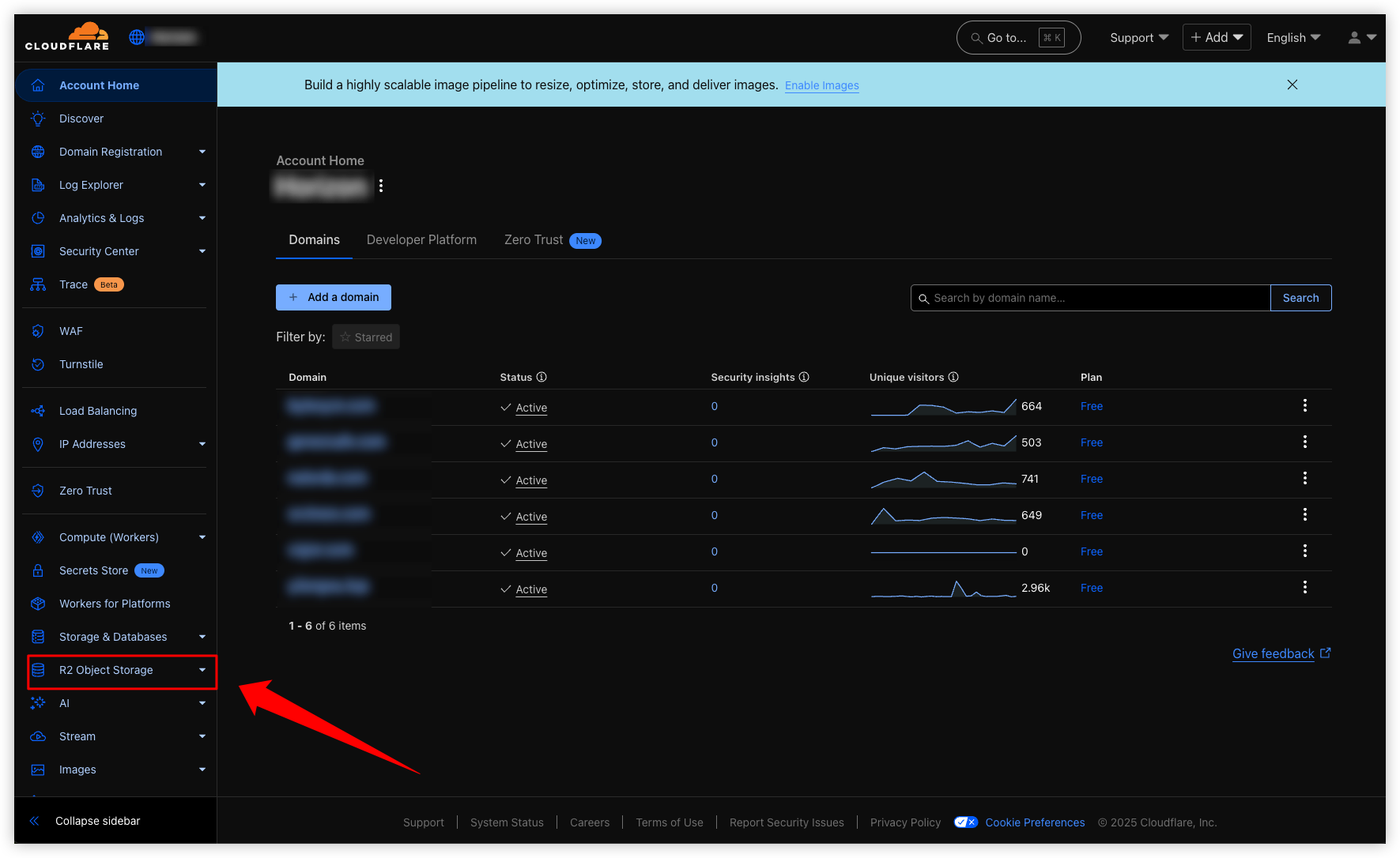
Open the R2 Object Storage page.
R2 Object Storage -
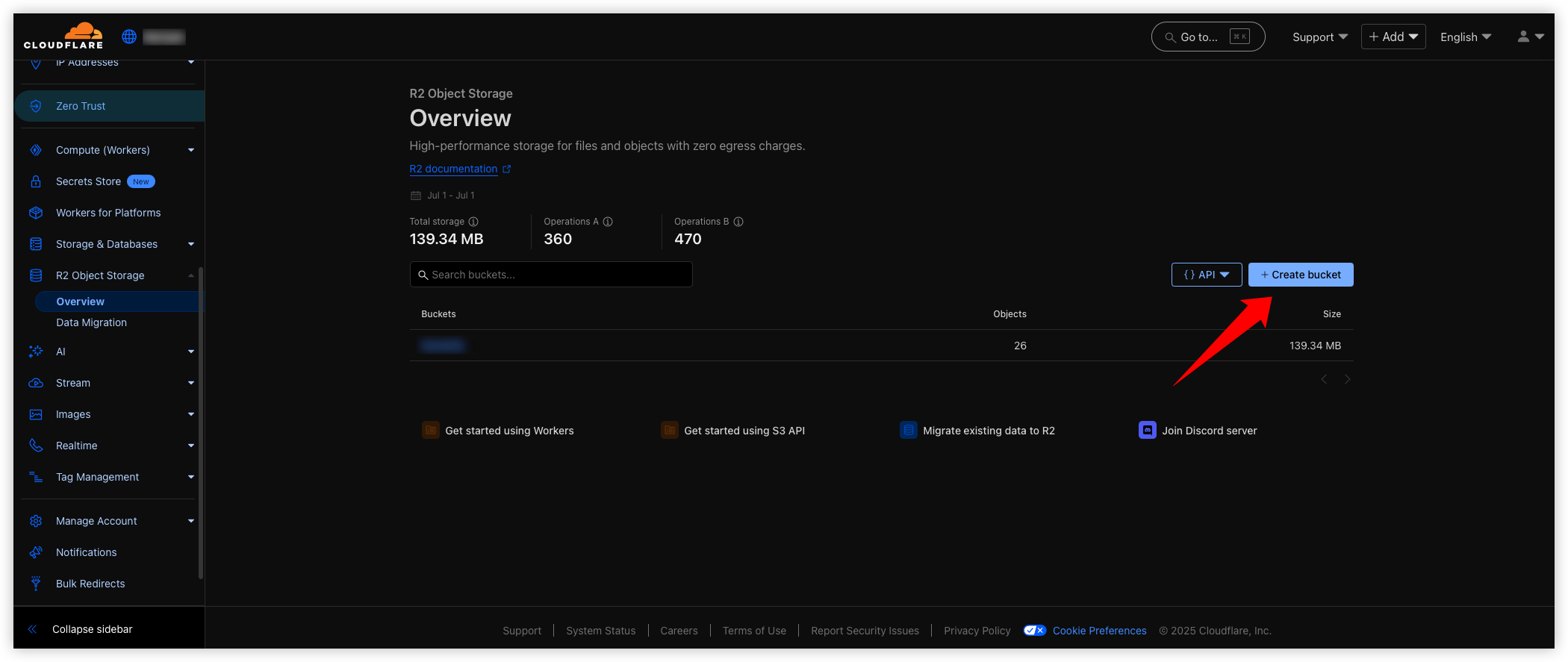
Create a bucket.
Create Bucket -
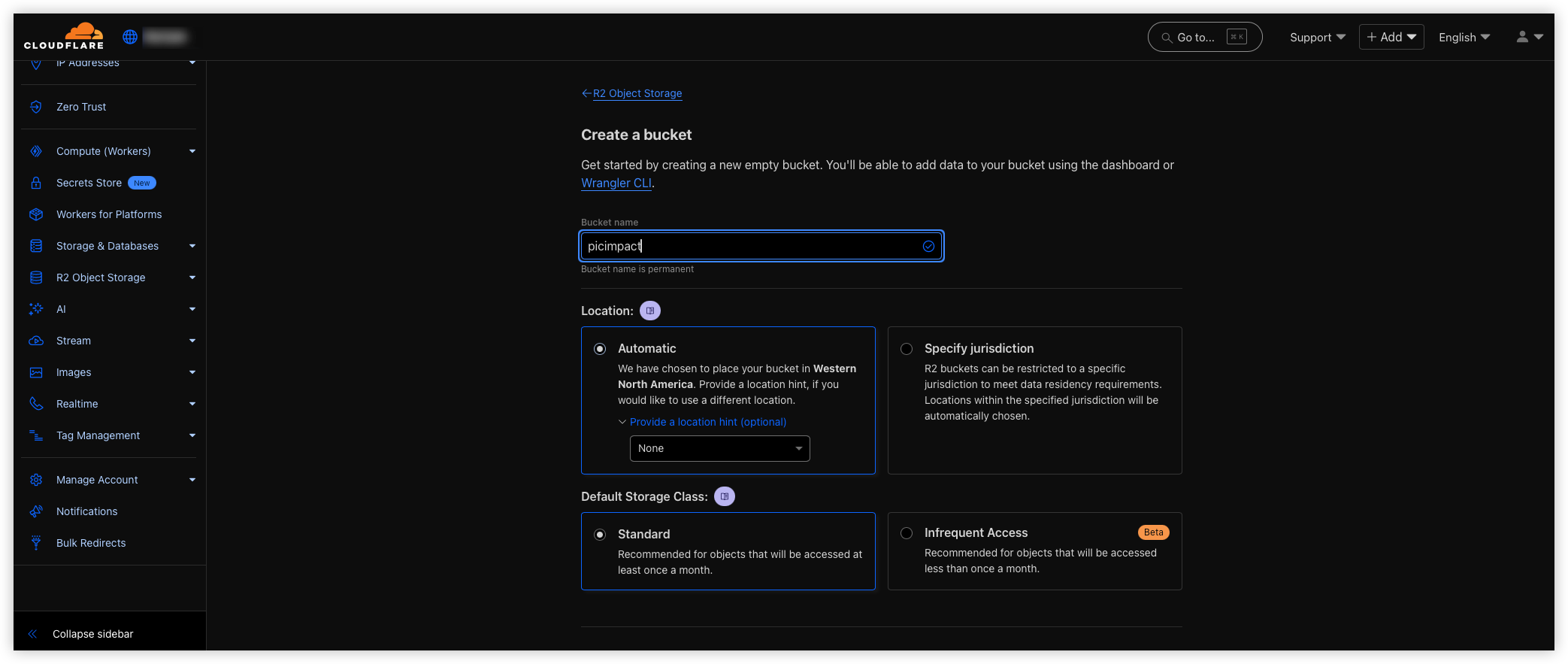
Configure the bucket parameters.
You may choose a Location or leave it blank; performance is similar. However, the storage class must be Standard, otherwise the free R2 allowance will not apply 😯.
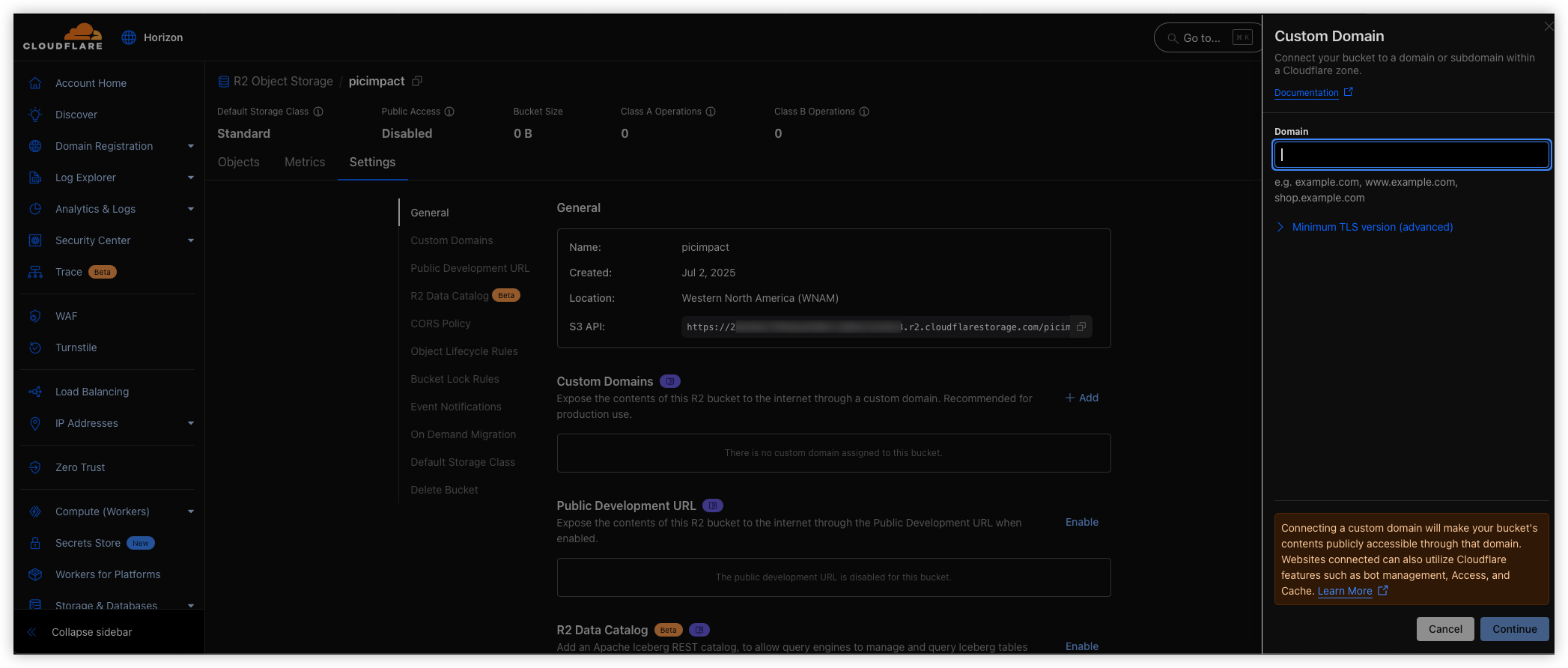
- Configure the object-storage domain.
The domain must use DNS nameservers pointing to Cloudflare. Domains managed by other providers will not work; if you use Cloudflare’s service, the domain must be under Cloudflare’s control.
- Important: Configure the CORS policy
This is the key step. Without a CORS policy, you may spend hours troubleshooting as I did.
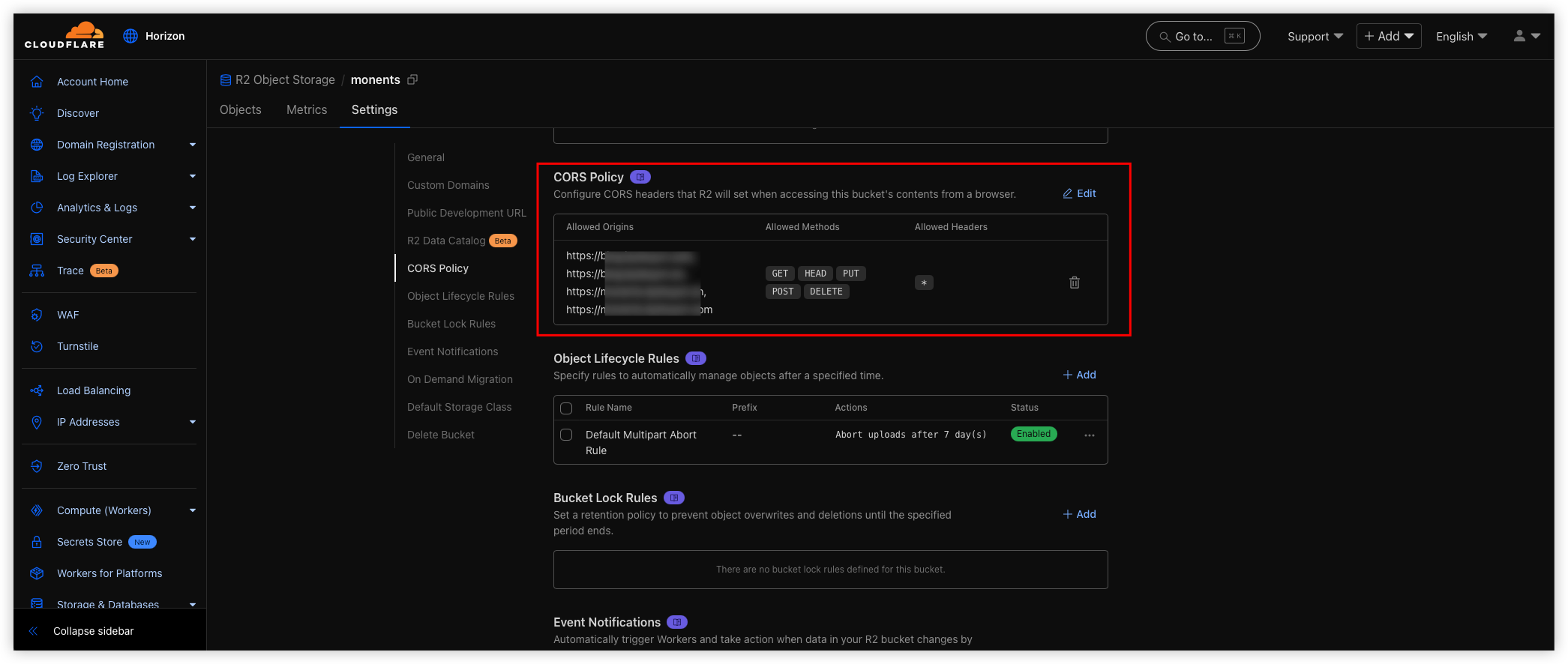
Example CORS configuration. AllowedHeaders is required; the default CORS policy generated by R2 does not include it.
[ { "AllowedOrigins": [ "http://localhost:3000" ], "AllowedMethods": [ "GET", "HEAD", "PUT", "POST", "DELETE" ], "AllowedHeaders": [ "*" ] }]- Create an API.
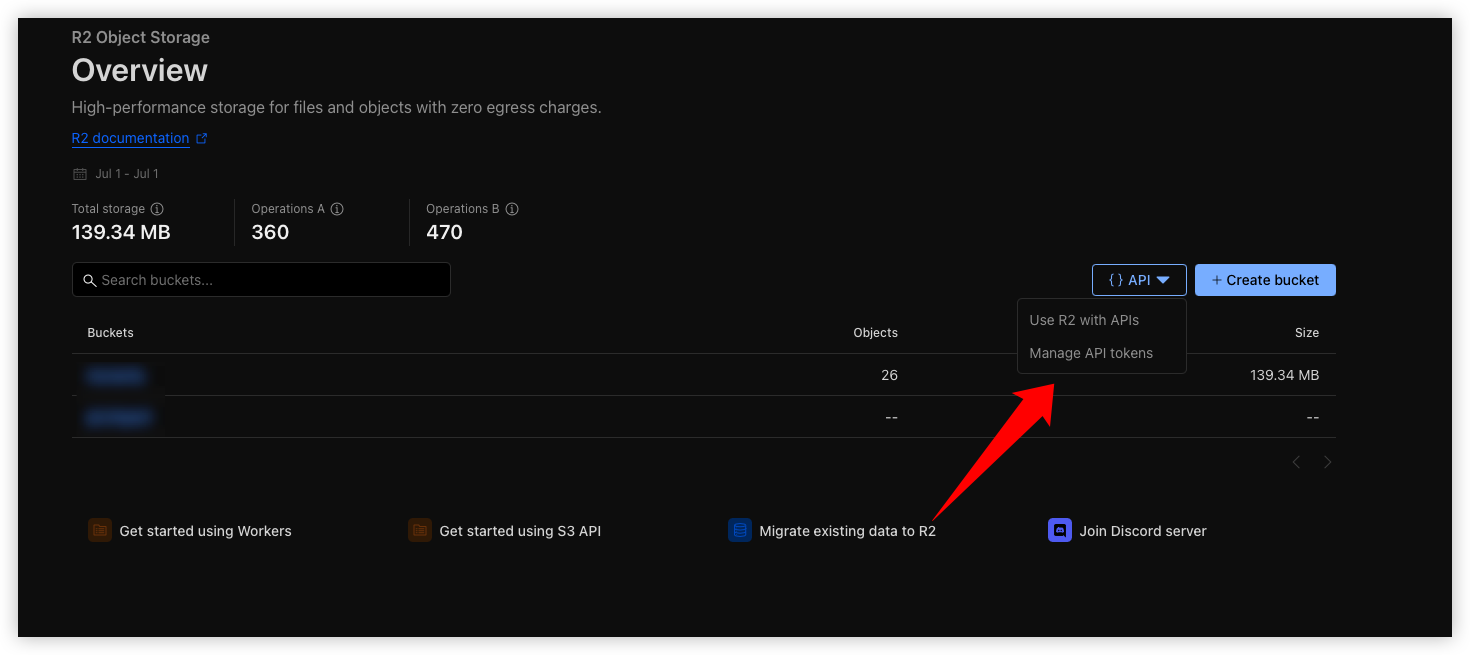
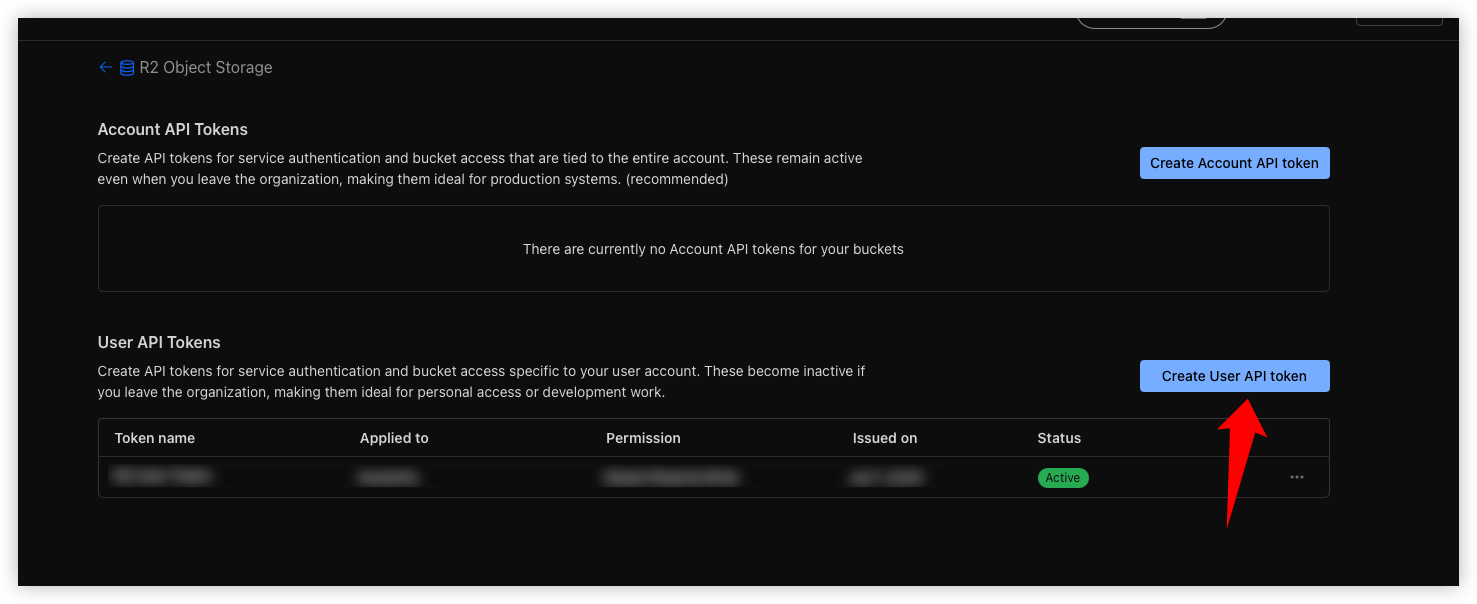
Create API
Note: As a security professional, I recommend applying least privilege to APIs. Some pages may encourage you to create an Account API token, which is not recommended. A User API Token is sufficient.
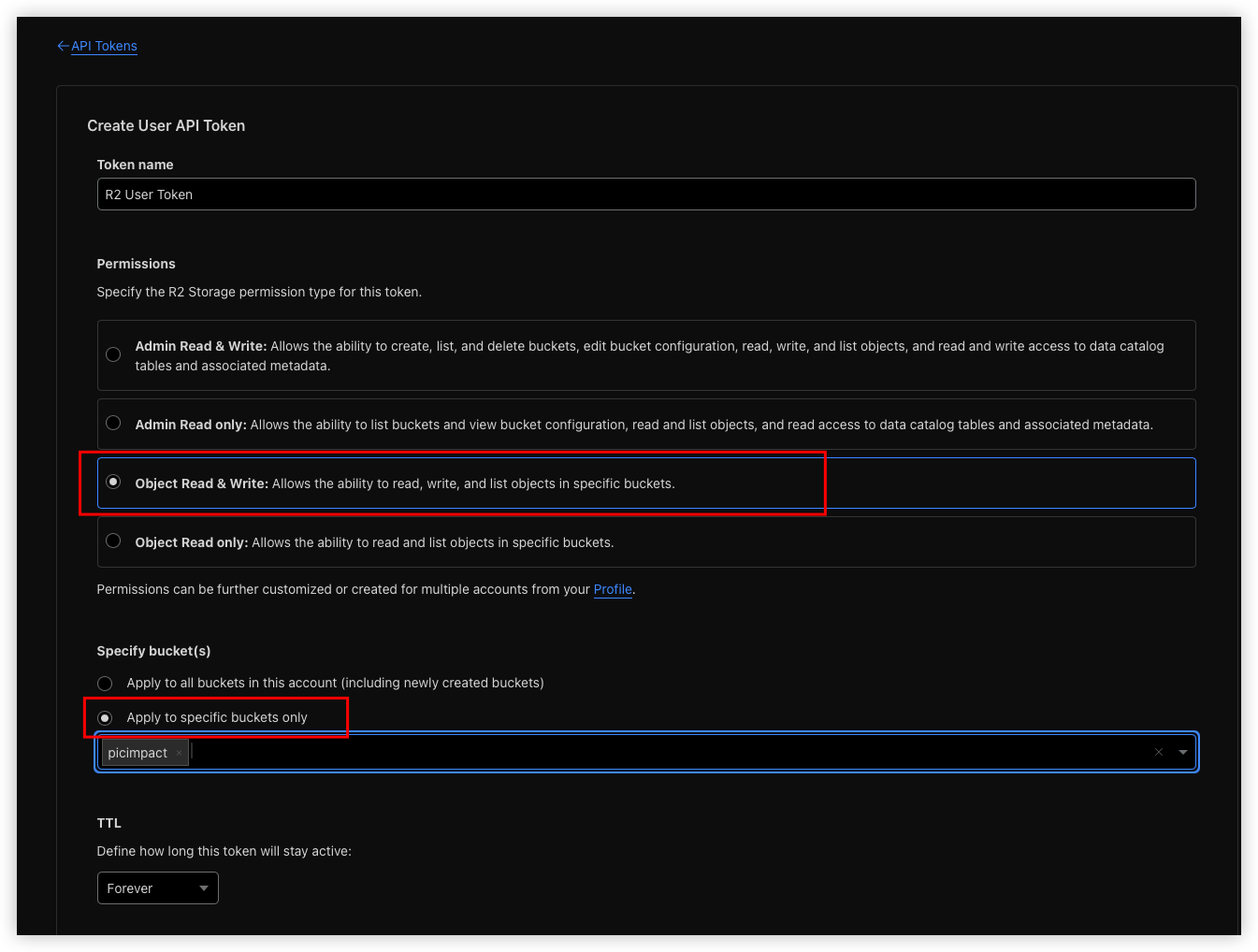
API permissions should also be minimized. Each API should control only its corresponding bucket. 🙅 Do not grant excessive permissions; least privilege is more complex, but safer.
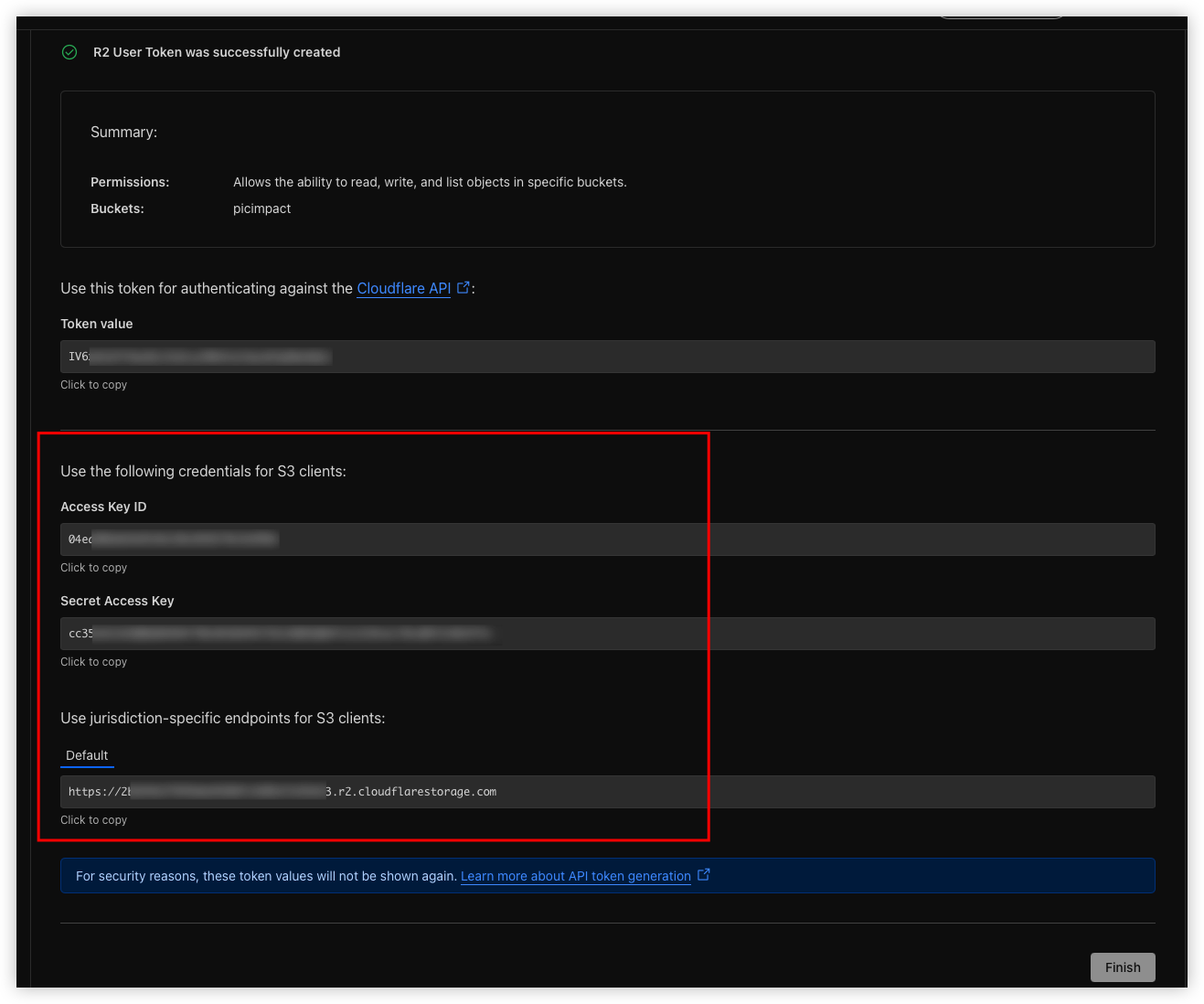
- Cloudflare provides the API key information.
These details are shown only once, so store them safely. For the PicImpact integration, you only need the S3 API details: Access Key ID, Secret Access Key, and Default (the Account ID).
🔗 Connect PicImpact to CF-R2 Object Storage
-
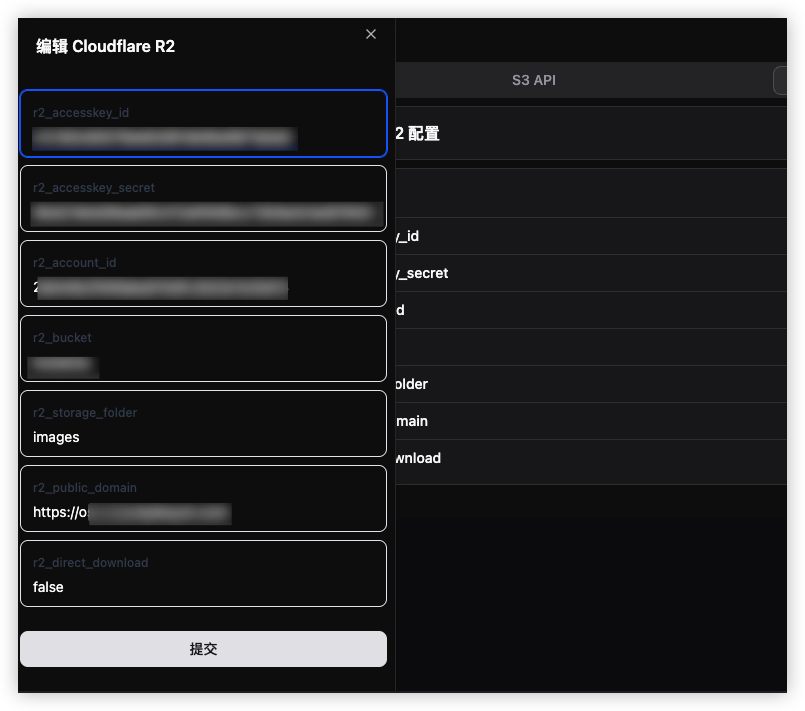
Open the admin panel and go to Storage Settings -> Cloudflare R2 -> Edit.
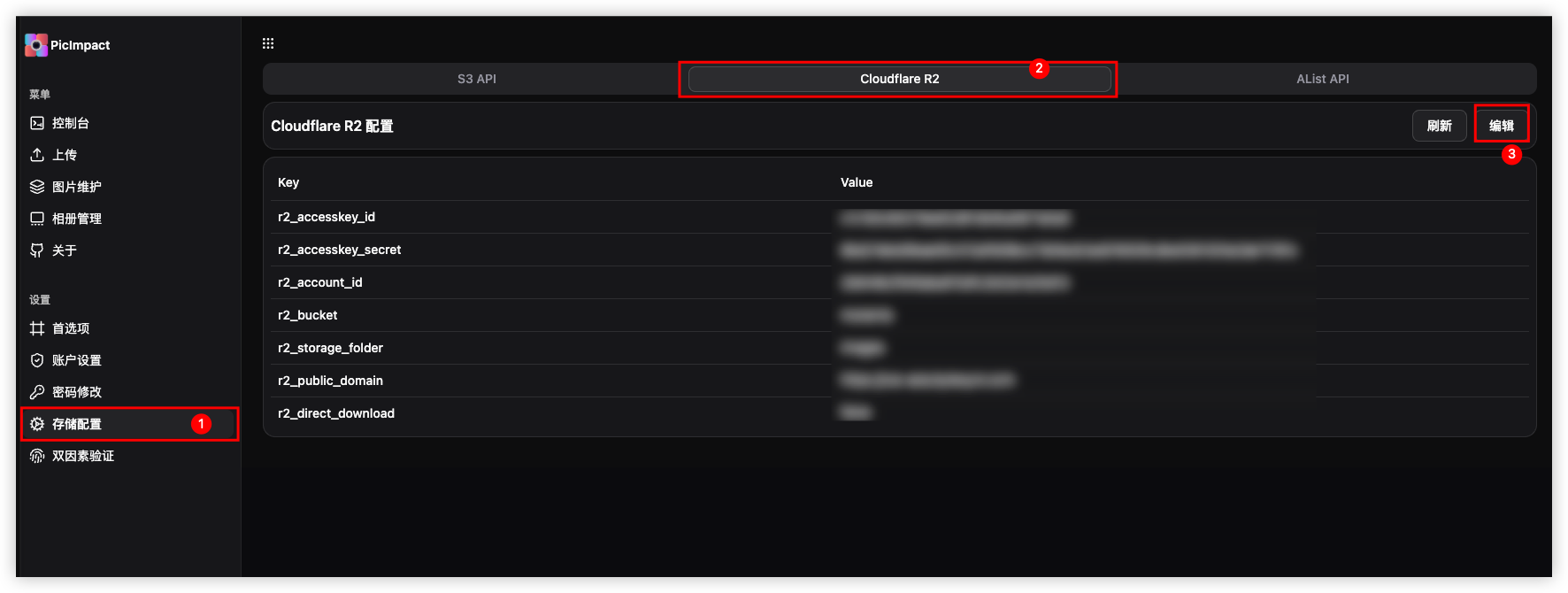
Cloudfalre R2 -
Enter the information.
-
r2_accesskey_id
Use the Access Key ID from Cloudflare’s API key information.
-
r2_accesskey_secret
Use the Secret Access Key from Cloudflare’s API key information.
-
r2_account_id
Take the first segment of Default. For example, if it is https://123456.r2.cloudflarestorage.com, your r2_account_id is 123456.
-
r2_bucket
Use the name of the bucket you created.
-
r2_storage_folder
Storage path: leave it blank for the root directory; otherwise enter the path name. Do not add a leading /.
-
r2_public_domian
Use the object-storage domain configured in Step 4. Include https://; if your domain is abc.com, enter https://abc.com.
-
r2_direct_download
The default false value is fine.
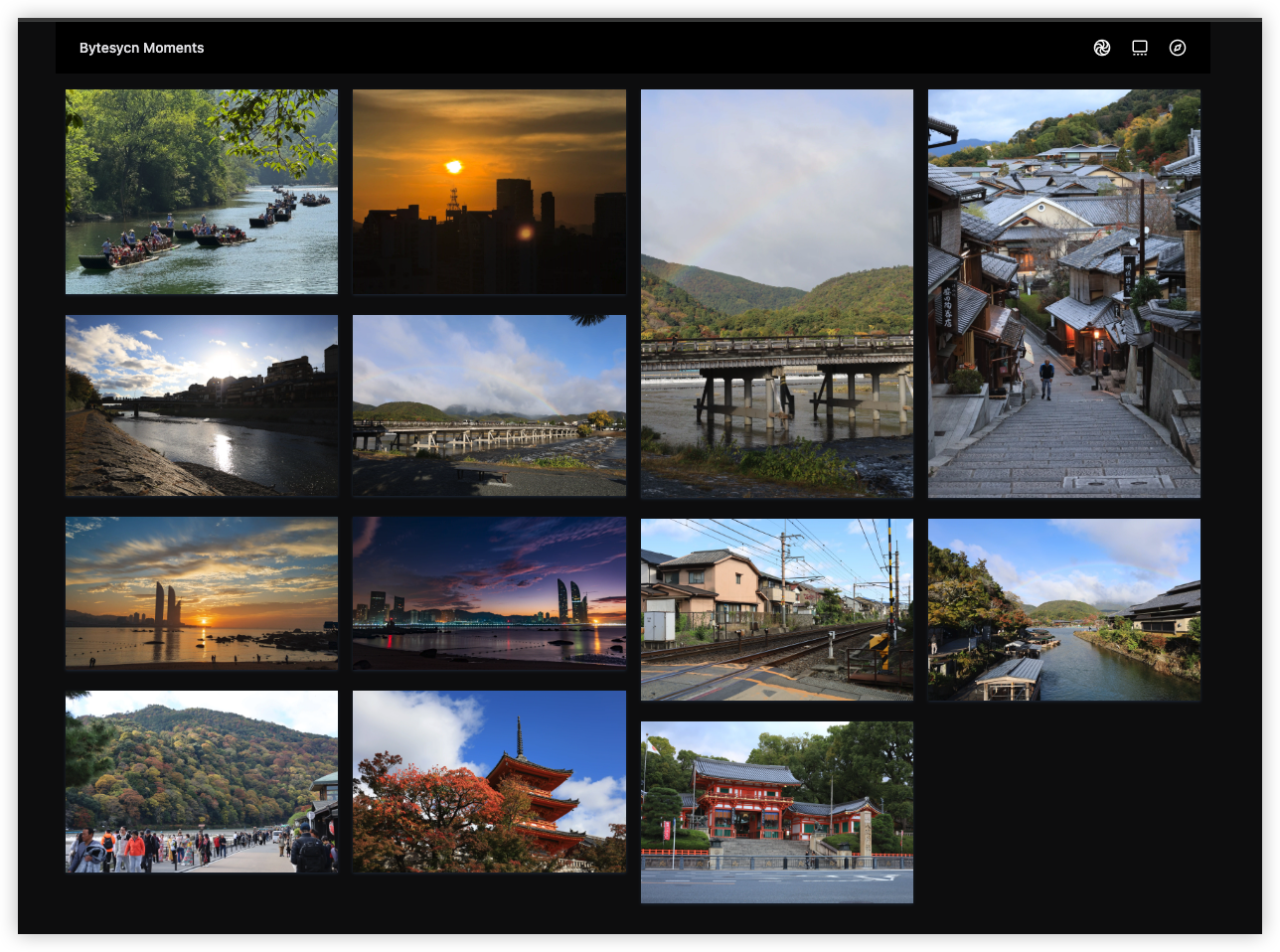
- Once complete, start showcasing your photography.
✅ Final Thoughts
PicImpact is an excellent project with an elegant UI and simple deployment. Its documentation does not provide step-by-step guidance for object storage, but that is understandable—open-source projects are all about experimentation.
Incorrect CORS configuration is especially misleading: an upload may appear successful while actually failing. The Console had already shown the error; I simply missed it, so the mistake was ultimately mine.
If you are also experimenting with PicImpact + CF-R2, remember:
- Check Console errors first.
- Compare them with the CORS settings.
- Finally, confirm that the upload actually reached the storage bucket.
I hope this article saves you from a lot of hair-pulling 🤯.
Support & Share
If this article helped you, please share or support!