
 Ryan Zhang's Blog


The Complete Guide to Sending and Receiving SMS on LTE Laptops with MbnSms
Translation Notice
This article was originally written in Chinese and translated into English with the assistance of AI. The translation has been reviewed and edited for clarity, accuracy, and readability. Please refer to the original source where necessary, especially for technical terms, commands, configuration details, and proper nouns.
Many users treat laptops with built-in LTE/4G modules as mobile hotspots or data-only devices. When you insert a regular mobile SIM card—not a data-only IoT card—the laptop can also send and receive SMS.
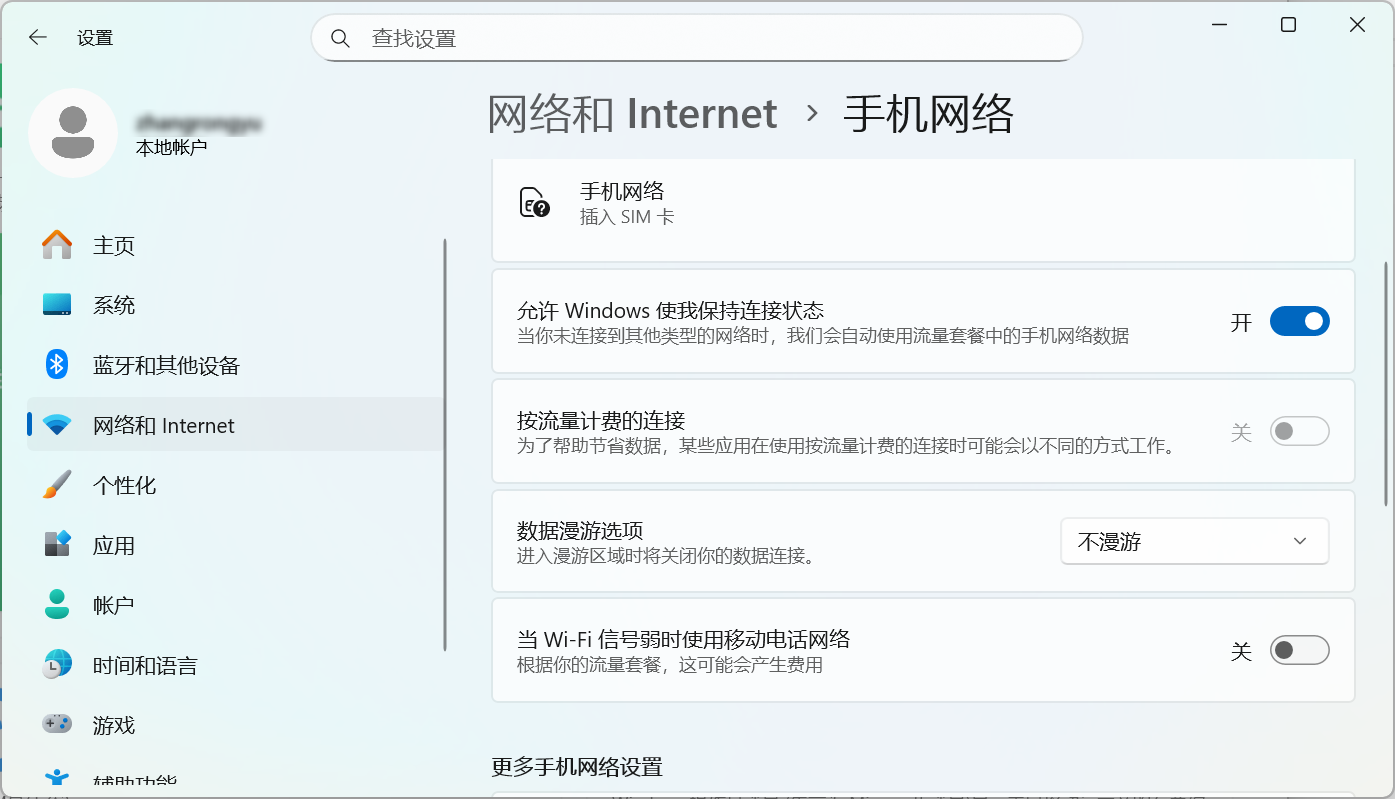
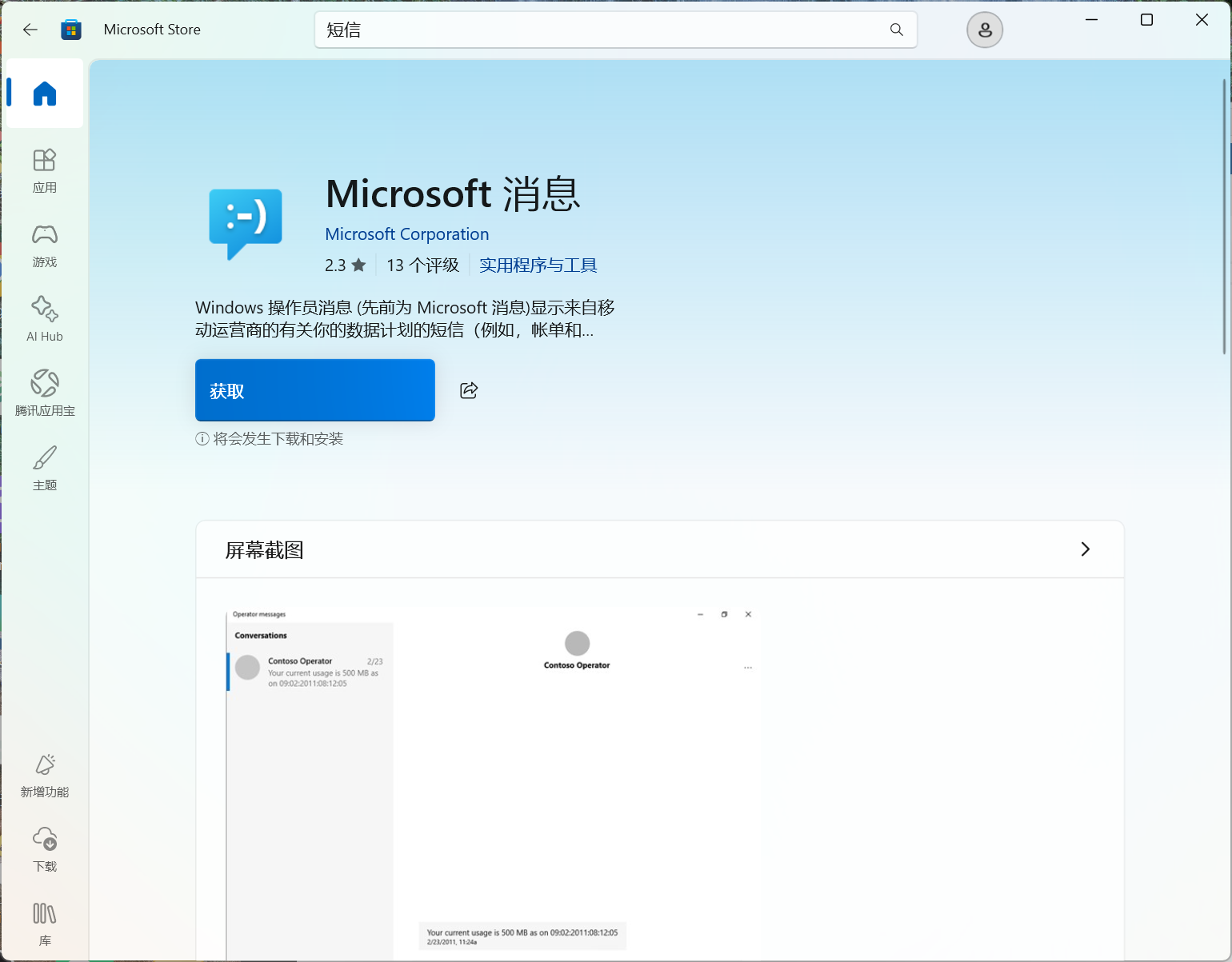
Although Windows 10/11 includes the Microsoft Messages app for convenient SMS reception, its native support is often incomplete when you need to send messages—for example, to reply to a provider’s verification code or complete registration. The traditional workaround is to remove the SIM card and put it in a phone, or search for unreliable third-party tools.
Windows communicates with the internal LTE module through the standard AT command set over a virtual serial port. With a professional debugging tool, full SMS functionality is easy to achieve.
This article introduces the powerful free tool MbnSms, which solves common SMS problems directly on your computer.
1. Why MbnSms?
1. Limitations of the Native App
Windows’ built-in “Microsoft Messages” app is mainly designed for reading notifications and simple replies (with support depending on the carrier), but often fails in these scenarios:
- Verification-code messages: many banks, government platforms, and providers require a specific text format, which the native app may fail to send;
- Long messages or special encodings: compatibility is poor for complex messages outside GSM 7-bit encoding;
- Status monitoring: users cannot easily view signal strength, network-registration status, and other low-level details.
2. Core Advantages of MbnSms
MbnSms (Mobile Broadband SMS Toolkit) is designed for Windows MBIM (Mobile Broadband Interface Model) devices.
- No driver hassle: directly uses Windows’ existing mobile-broadband driver interface.
- Complete functionality: supports reading and sending SMS.
- Hardware diagnostics: network type (LTE/5G), carrier information, and ICCID.
- Lightweight and free: tiny, portable, and requires no installation.
2. MbnSms User Guide
1. Download and Preparation
Download: MbnSms v1.1.0.15.zip
Prerequisites:
- Insert a valid SIM card with SMS enabled.
- The LTE module must be recognized and connected to the network; Airplane Mode must be off.
Note: carrier-locked devices and data-only IoT cards may disable SMS at the firmware level. The software cannot force-enable SMS in these cases.
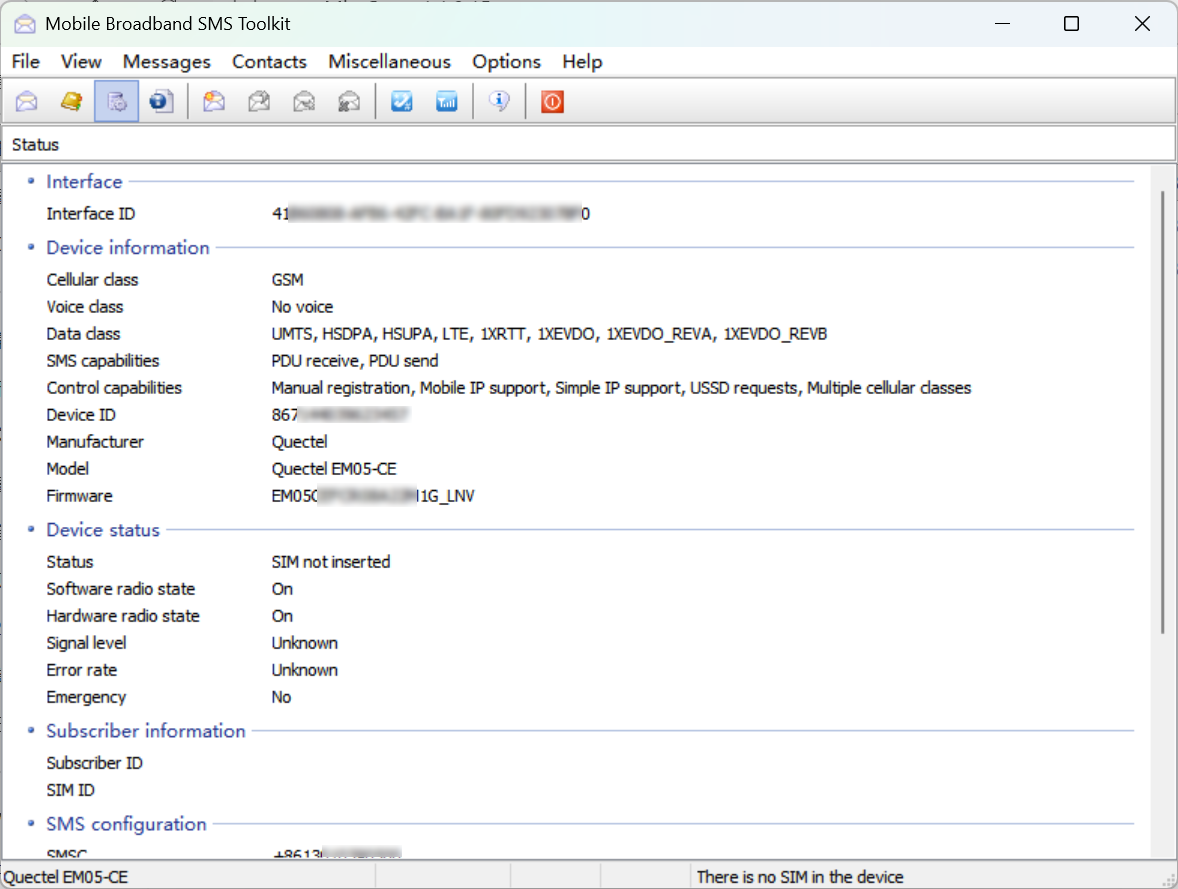
2. Interface and Hardware Status
After starting the software, the main interface automatically detects and lists the system’s mobile-broadband devices.
3. Receive SMS
MbnSms automatically loads messages in the inbox by default.
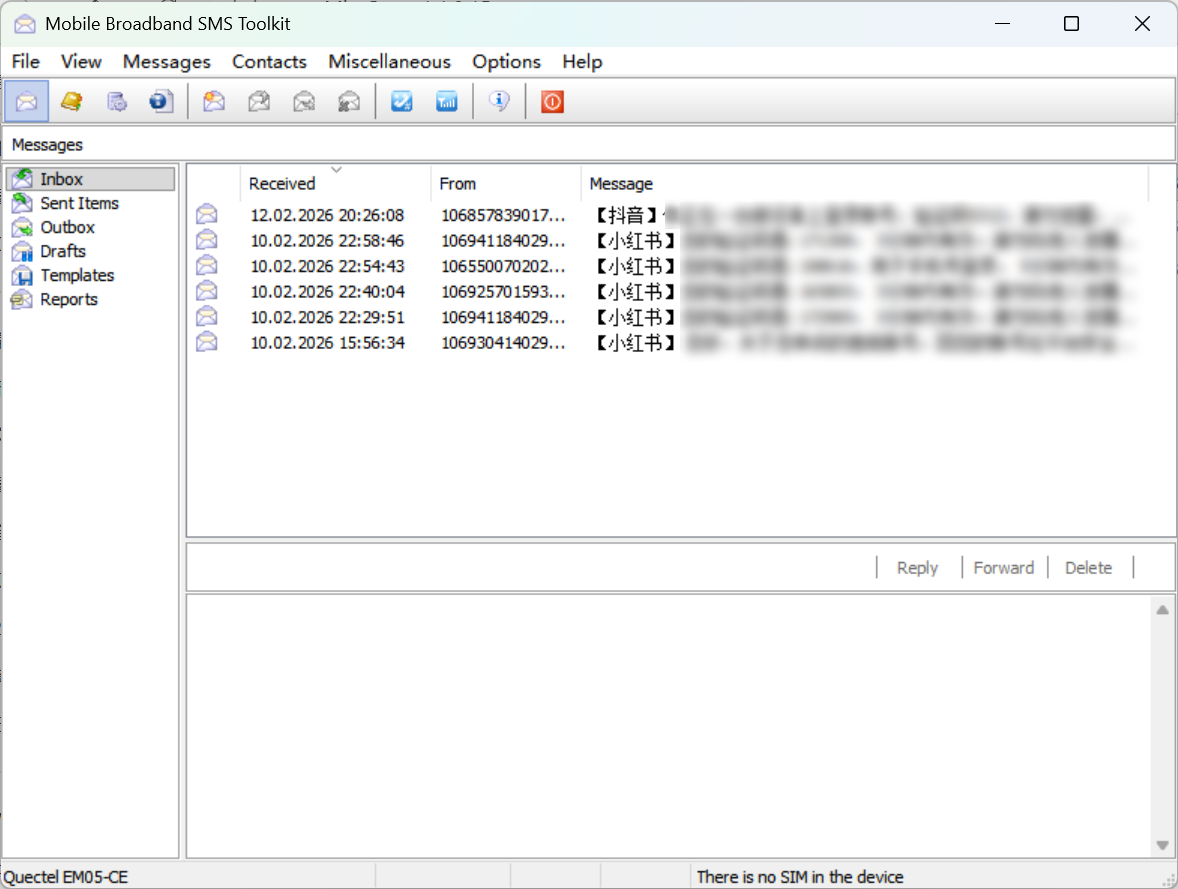
- View content: click an item to display the full message, timestamp, and sender number below.
- Encoding: the software handles garbled Chinese text automatically and detects UCS2/GSM encoding.
- Storage: messages are usually stored on the SIM card or in the module’s memory; choose SM (SIM card) or ME (module memory) in the software.
4. Send SMS
This is the key feature for handling verification codes.
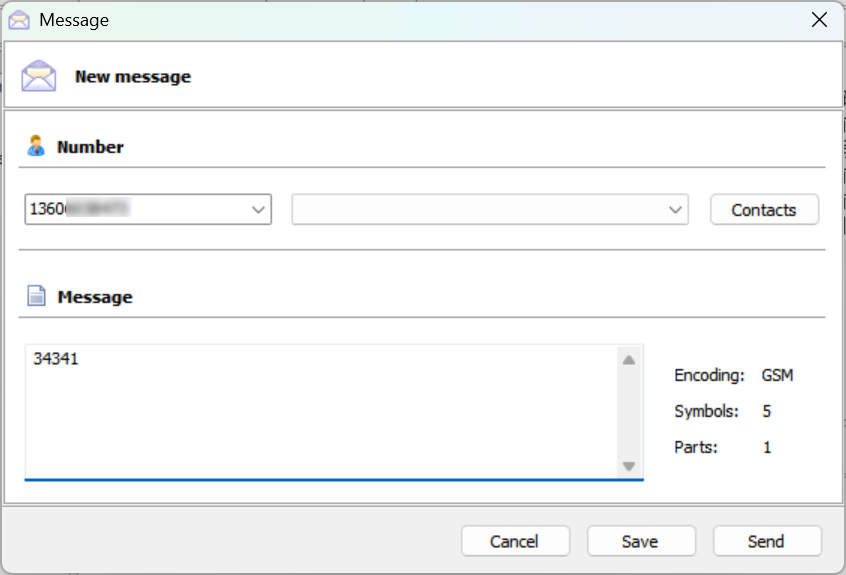
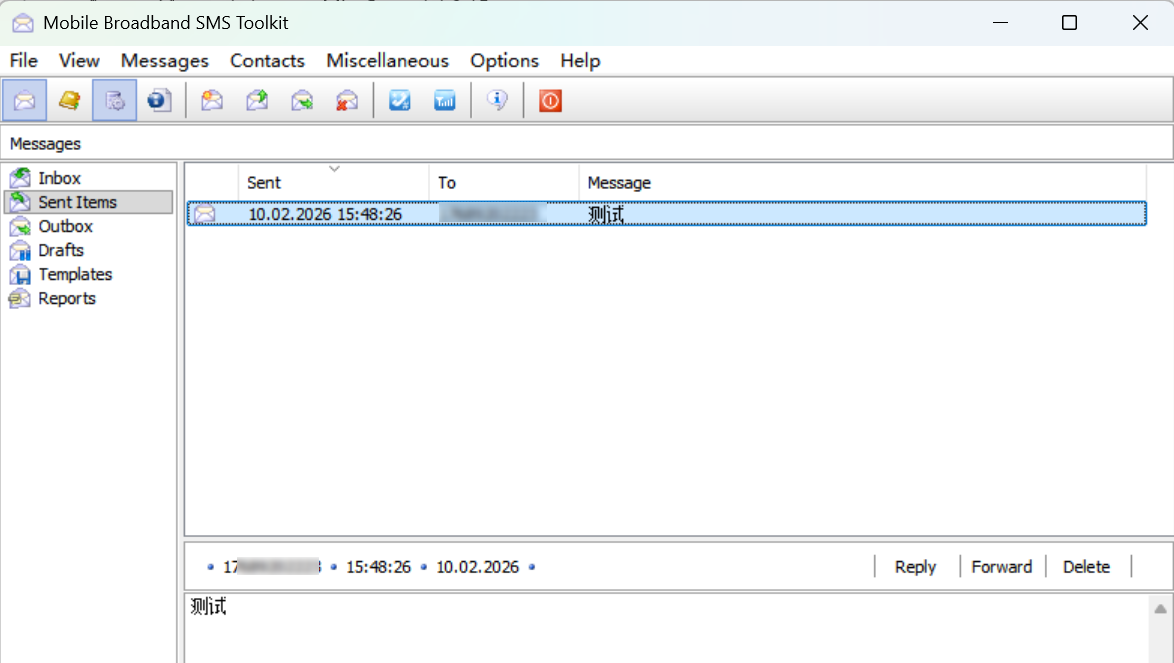
- Click the New Message button.
- Number (recipient): enter the recipient’s phone number, preferably with a country code such as +86 for China.
- Message (content): enter the text. If replying with a verification code, copy and paste it to avoid typing errors.
- Click Send.
3. How Does It Work?
Understanding the mechanism helps with troubleshooting. LTE modules on Windows follow the MBIM protocol.
Communication channel: the operating system maps the LTE module to one or more virtual serial ports (COM Ports) or communicates through the MBIM control channel.
AT command set: MbnSms is essentially a graphical AT-command sender.
- Read SMS command: AT+CMGL=“ALL”
- Send SMS command: AT+CMGS="
"
Encapsulation and parsing: the software converts clicks into standard AT commands, sends them to the module, and parses returned hexadecimal or text data into a human-readable interface.
Note: unlike older external USB modems that require manual serial-driver installation, built-in LTE-module drivers are managed automatically by Windows Update. MbnSms communicates directly through the Windows API (MbApi), providing excellent compatibility.
Conclusion
For frequent travelers who rely on laptops, a built-in LTE module is more than a backup Internet connection; it extends the device’s communication capabilities. With MbnSms, you can bypass operating-system limitations and handle verification codes and business confirmations efficiently without repeatedly moving the SIM card.
Support & Share
If this article helped you, please share or support!